
How to Draw on a PDF with Your Keyboard
Learn how to add, move, resize and delete shapes on a PDF in Helperbird using only the keyboard, without needing a mouse or a steady hand.
Jump to the stepsOn this page
Why Use the Keyboard?
Drawing on a PDF normally means holding a mouse steady while you drag. That is difficult for a lot of people, and impossible for some.
Helperbird's PDF Reader lets you do the same job with the keyboard instead. You drop a shape onto the page with one key, then nudge it into place with the arrow keys. Nothing has to be dragged.
Who is This For?
This is helpful for:
- Anyone who finds a mouse or trackpad hard to control precisely
- People with tremor, limited hand movement, or joint pain
- Screen reader and keyboard-only users
- Anyone who wants shapes lined up neatly rather than drawn by hand
Step 1: Turn Drawing On
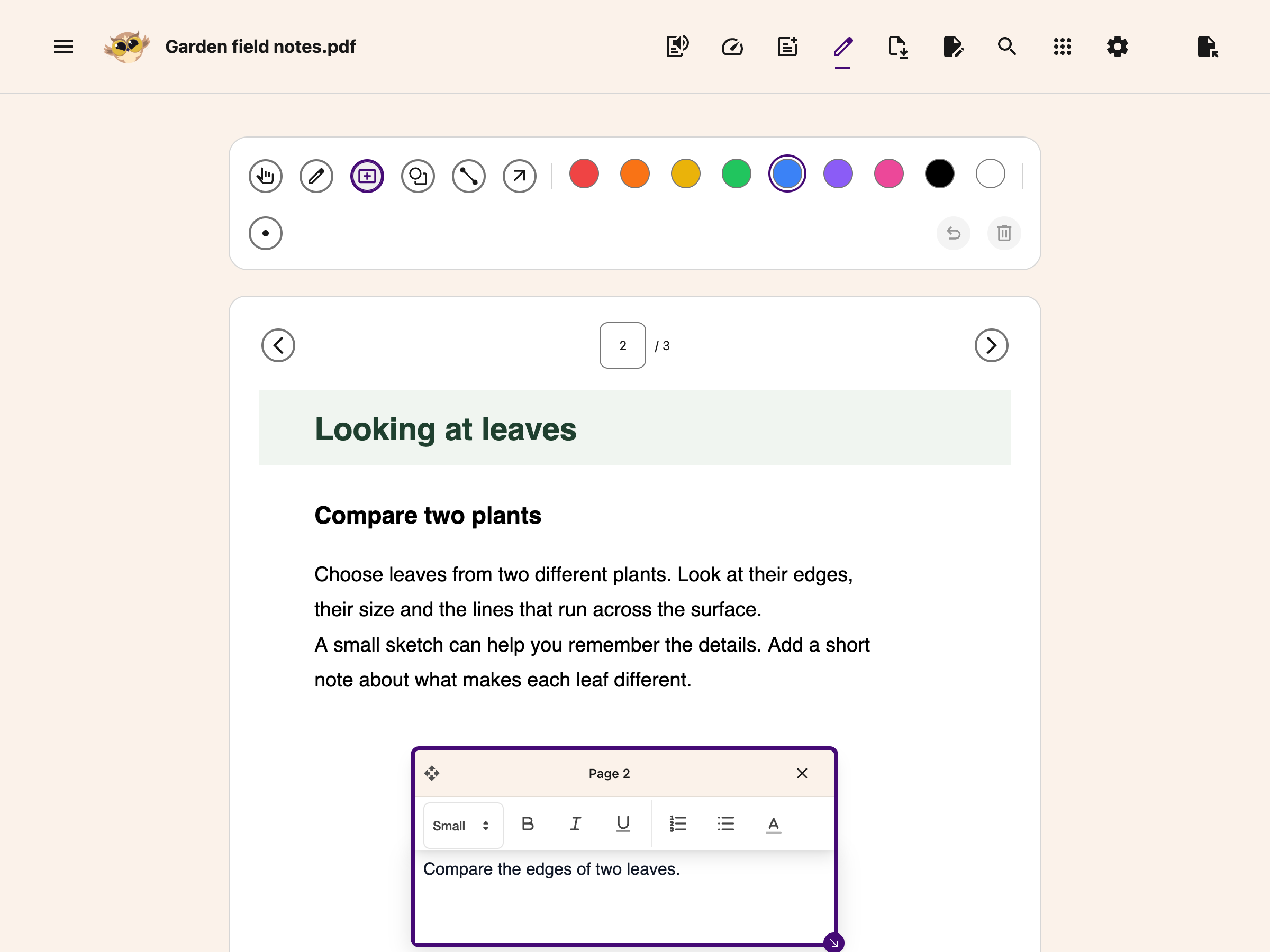
Open your PDF, then press Draw in the toolbar at the top. The drawing bar appears underneath it.
 View full-size image (opens in a new tab)
Step 2: Choose a Shape
Tab to the drawing bar and choose Rectangle, Oval, Line or Arrow.
View full-size image (opens in a new tab)
The Pen tool draws freehand and needs a pointer, so it is the one tool that cannot be used this way. Everything else can.
Step 3: Place the Shape
Tab to the drawing area, then press Enter or Space.
The shape appears in the middle of the page and is selected straight away. Helperbird announces "Shape added to the centre of the page. Arrow keys move it, Alt plus arrow keys resize it, Delete removes it."
Step 4: Move It
Use the arrow keys to move the selected shape.
- Arrow key moves it 5 pixels
- Shift + arrow key moves it 20 pixels
Use Shift to cross the page quickly, then tap the arrow keys on their own to line it up.
Step 5: Resize It
Hold Alt and use the arrow keys.
- Alt + arrow key resizes by 5 pixels
- Alt + Shift + arrow key resizes by 20 pixels
Freehand pen strokes can be moved but not resized. Rectangles, ovals, lines and arrows can all be resized.
Step 6: Delete It
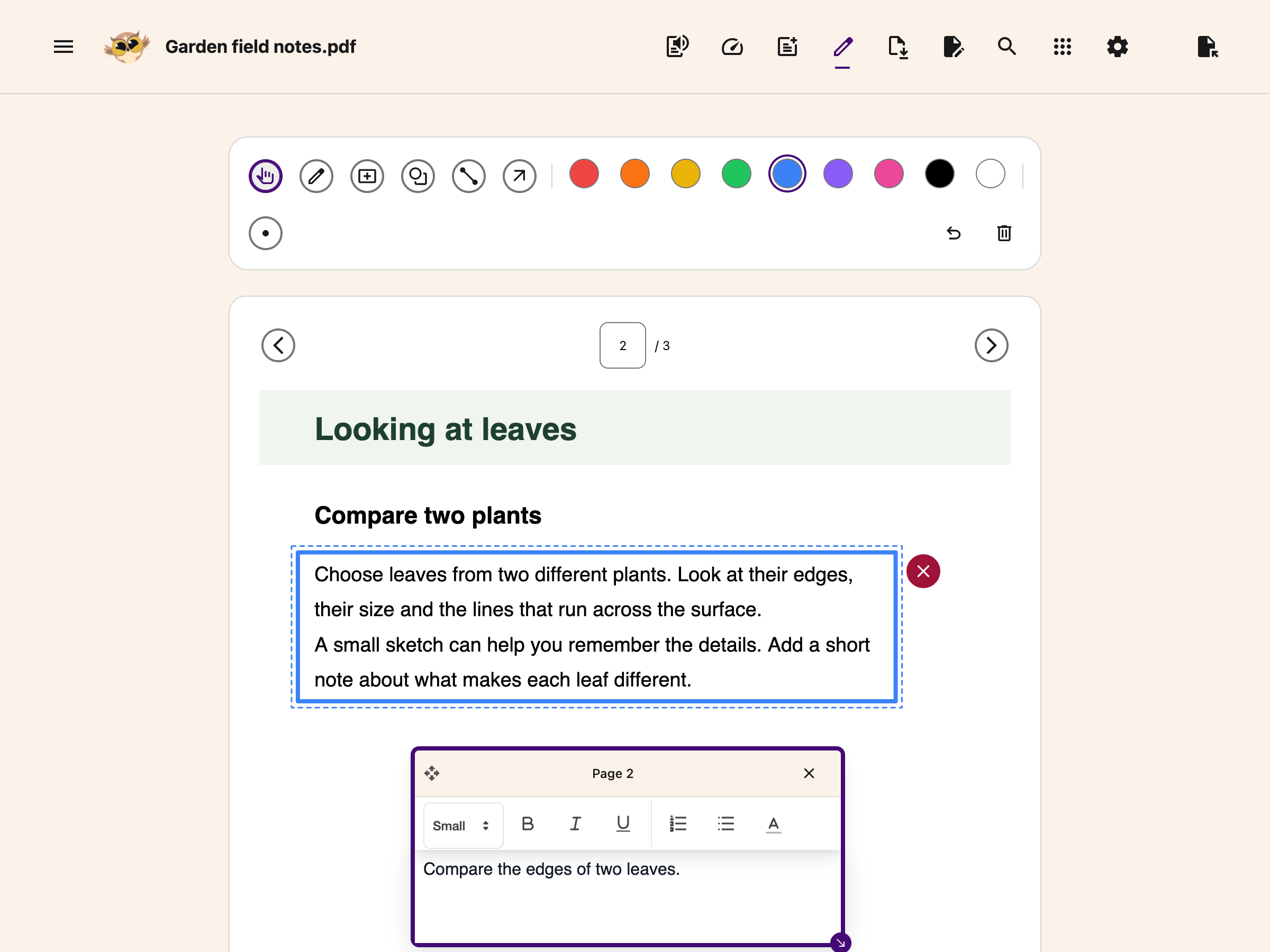
Press Delete or Backspace while the shape is selected. It is removed straight away.
If you want to keep it but stop working on it, press Escape to deselect instead.
 View full-size image (opens in a new tab)
Moving Between Shapes
Choose the Select / Move tool, then press Tab to step forward through the shapes on the page, or Shift + Tab to step back.
When you reach the last shape, Tab takes you out of the drawing area and on to the next control, so you are never stuck inside it.
All the Keys
| Key | What it does |
|---|---|
| Enter or Space | Place the chosen shape in the middle of the page |
| Arrow key | Move the shape 5 pixels |
| Shift + arrow key | Move the shape 20 pixels |
| Alt + arrow key | Resize the shape by 5 pixels |
| Alt + Shift + arrow key | Resize the shape by 20 pixels |
| Delete or Backspace | Remove the selected shape |
| Escape | Deselect, keeping the shape |
| Tab / Shift + Tab | Step between shapes, then out of the drawing area |
The Undo button in the drawing bar removes the last shape you added, and Clear All empties the current page. Both are ordinary buttons you can reach with Tab.
Need Additional Help?
If you have any questions or run into any issues, please contact the Helperbird support team. You can reach us at Helperbird support. We are happy to help you get the most out of Helperbird.
Printed from the Helperbird Help Center · Updated September 25th, 2026
Questions? We are happy to help — helperbird.com/support