
How to Use Helperbird PDF Reader on iPhone, iPad, and Mac
Open, read aloud, annotate, translate, and export PDFs in the free Helperbird app for iPhone, iPad, and Mac.
On this page
Open a PDF in the Helperbird App
Open the Helperbird app on iPhone, iPad, or Mac. Choose Open PDF, the document-with-plus button, and select a file from your device or iCloud Drive. You can also start with the included Welcome PDF.
The app needs iOS or iPadOS 17.4 or later, or macOS 15.6 or later. All native PDF reader tools are free and do not need a Helperbird account. Some Apple features need a supported device, language, or newer operating system.
Helperbird keeps a local working copy. Your original file is not overwritten. Open Tools → Recent PDFs to return to an imported document and its notes.
This guide is for the installed Apple app. For a PDF open in your browser extension, use the browser PDF Reader guide.
Listen and Choose a Voice
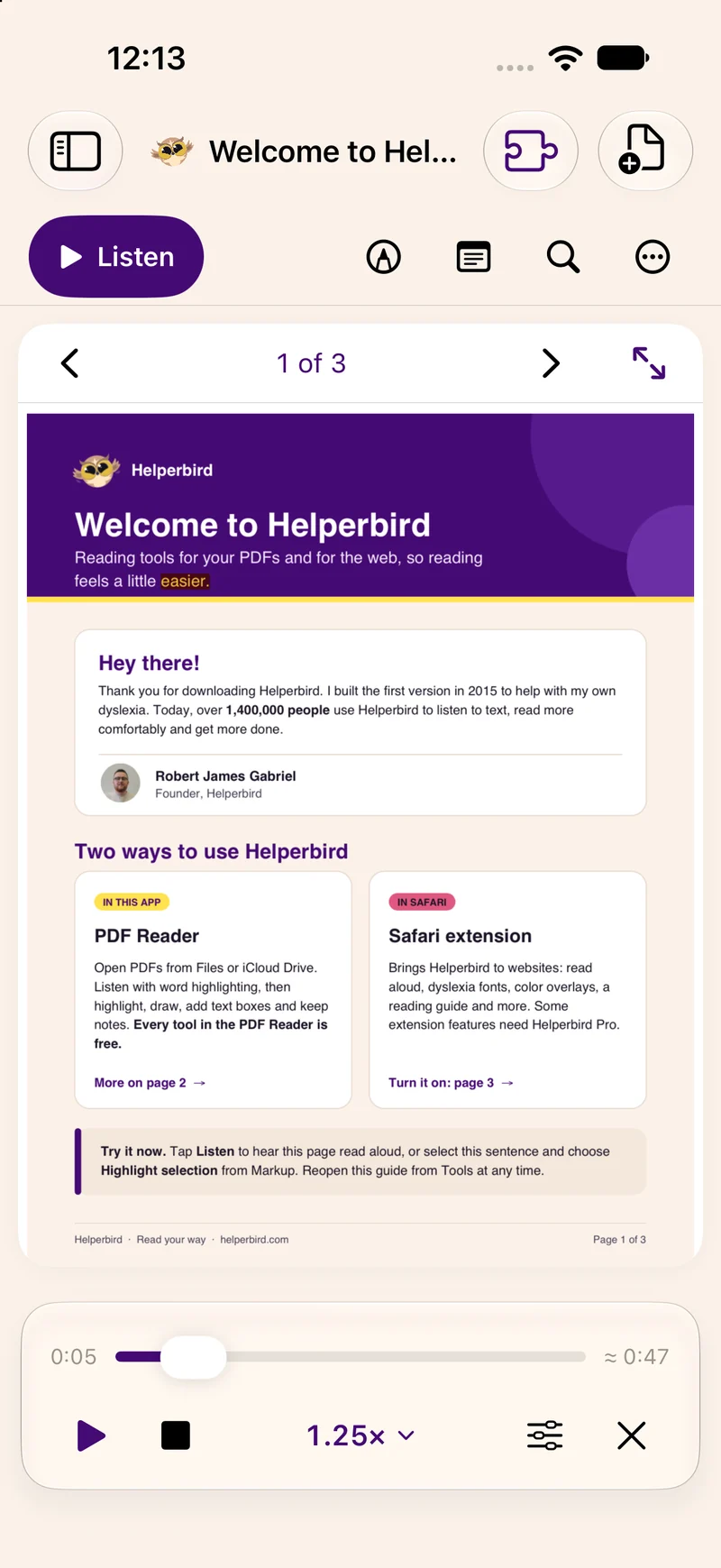
Choose Listen to read the current page aloud. Select a passage first to read just that text. The player lets you pause, resume, stop, seek, and change speed. Spoken words are highlighted as you listen. The time display is an estimate.
Open Voice and speed, the sliders control in the player, to choose an installed Apple voice. Search the voice chooser by name, language, or country. Available voices depend on your device. These are separate from the browser extension's Natural voices.
 View full-size image (opens in a new tab)
If Listen cannot find text, the page may be a scan. Use Extract text first.
Keep Notes Beside the PDF
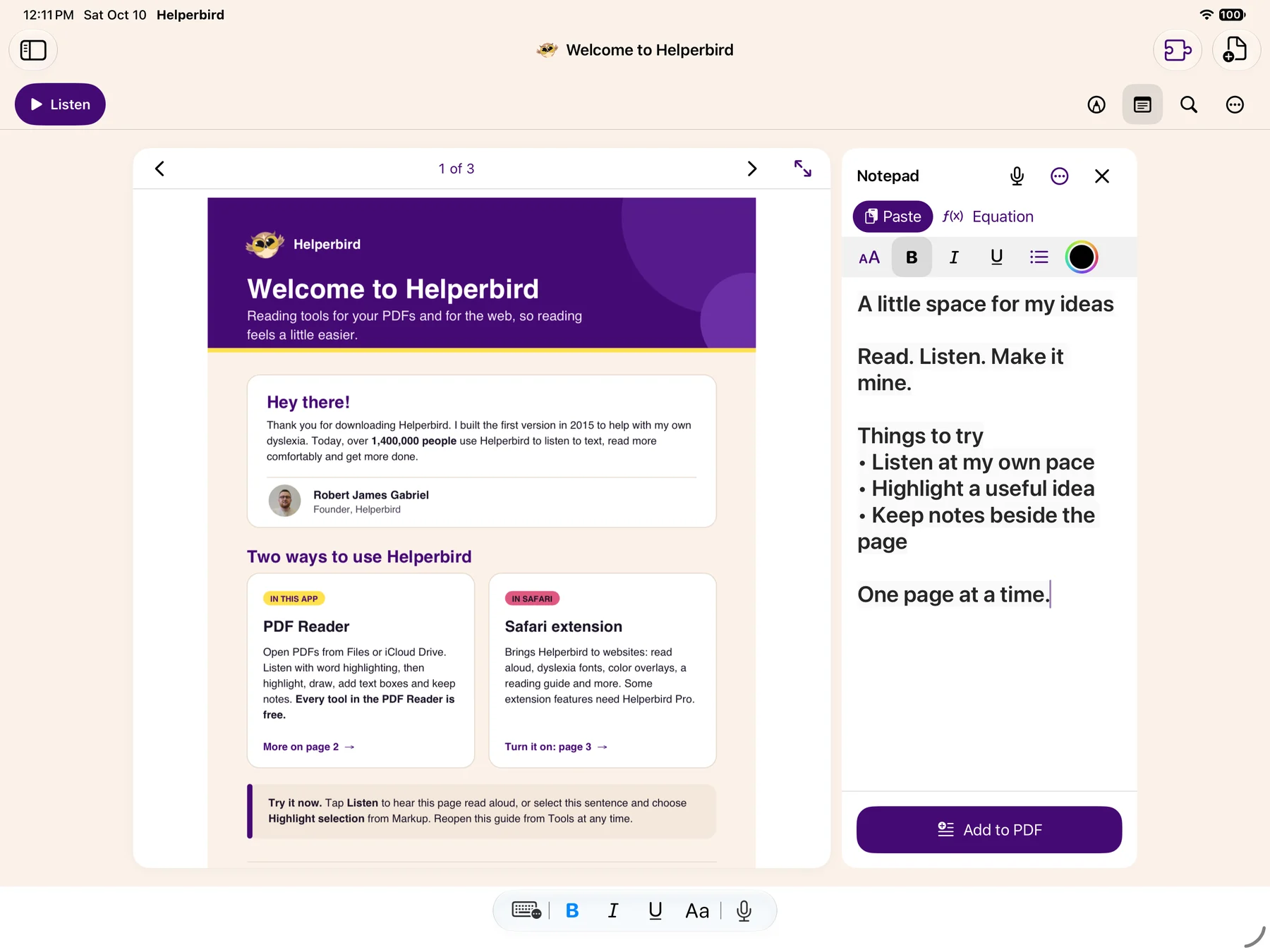
Choose Notepad, the note icon. On a wide iPad or Mac window, notes sit beside the PDF. On an iPhone or a narrow window, they open in a sheet.
Write and format your notes with the text controls. You can paste images or insert an equation. Choose Add to PDF to place selected note text on the page; without a selection, the whole note is used. Notes belong to the current document and are saved locally.
 View full-size image (opens in a new tab)
For voice typing, use the microphone in the Notepad. Allow microphone and speech-recognition access when asked. Dictation needs on-device support for your language. On Mac, Dictation must also be enabled in System Settings → Keyboard. If setup is incomplete, Helperbird shows instructions and a Try again option; you can keep typing while you resolve it.
System Writing Tools is available only on eligible devices with Apple Intelligence enabled.
Add Text, Highlights, and Drawings
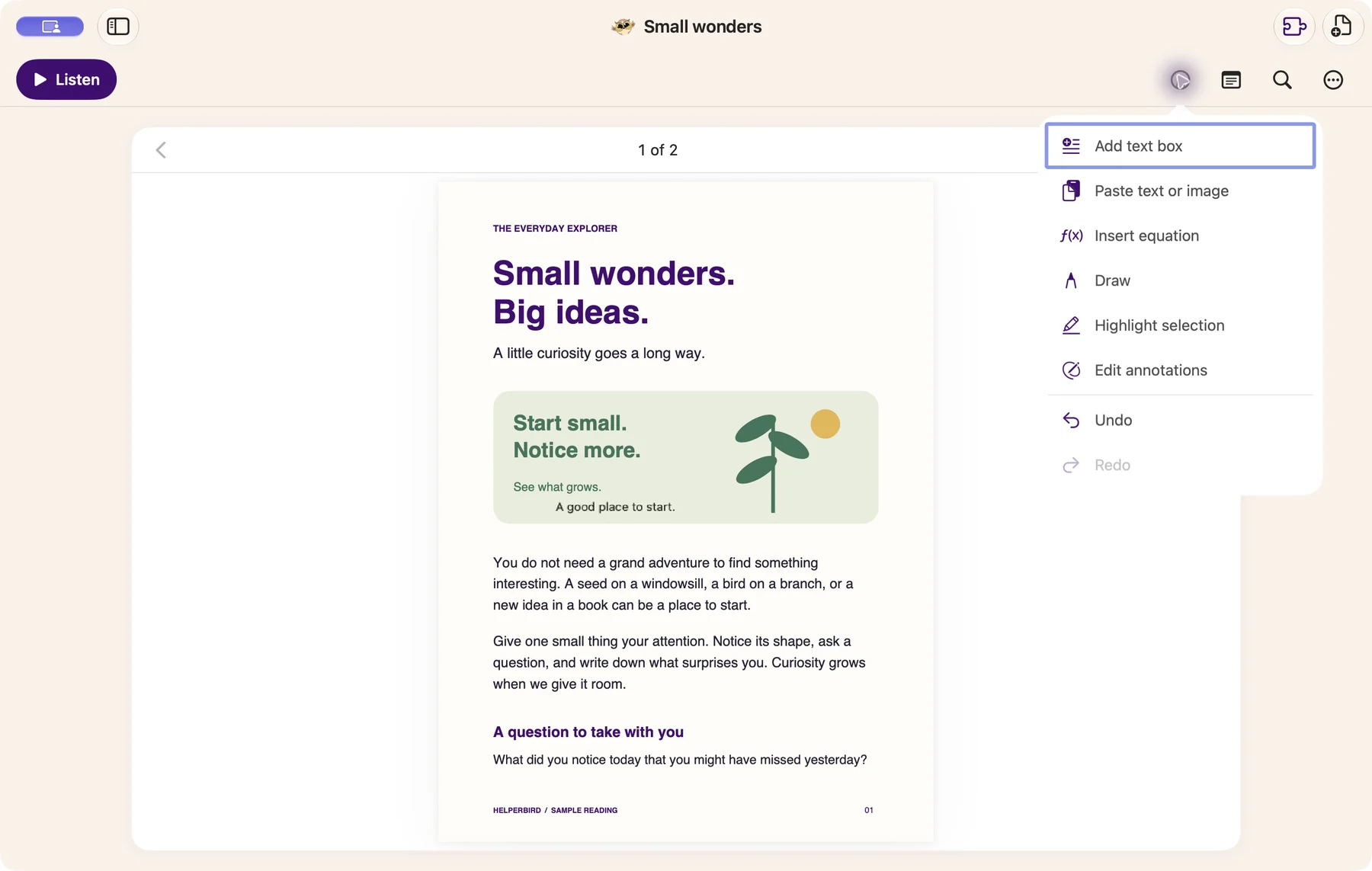
Open Markup, the pen-tip button. Choose Add text box, Paste text or image, Insert equation, or Draw. To highlight words, select them on the PDF first, then choose Highlight selection.
 View full-size image (opens in a new tab)
Double-tap a text box on iPhone or iPad, or double-click it on Mac, to edit it. Save your edit when finished. Drag a box to move it and use its corner handle to resize it. The annotation editor also provides position and size controls. Edit annotations lets you return to annotations already on the page.
Use Undo and Redo in Markup for supported annotation changes. Some PDFs restrict commenting; the app respects those document permissions.
Extract or Translate Text
Open Tools, the three-dots button, then choose:
- Extract text: recognize the text on a scanned page. Review the result, then listen, translate, copy, or share it. Clear printed text usually works better than handwriting or blurry scans.
- Translate page: open Apple's translation sheet for the page text. Language availability and downloads are managed by the operating system. If you use its replacement action, Helperbird opens a translated-text reading tab.
For a scan without selectable text, extract it before translating. The native app uses Apple's text recognition and translation tools; its route is different from Screenshot Reader and Immersive Reader in the browser extension.
Summarize or Explain
On supported systems, Tools → Summarize and Tools → Explain work with selected text or the current page. These tools run on-device and need iOS, iPadOS, or macOS 26 or later, an eligible Apple Intelligence device, and the required model to be available.
If the tool is unavailable, Helperbird explains the requirement. The rest of the reader still works. For a long passage, select a shorter section and try again. Review generated summaries and explanations against the original PDF.
Save and Export
Your working copy, notes, and page position are saved locally. To create a file you can share, choose Tools → Export PDF. Use the share sheet on iPhone or iPad, or the save/share controls on Mac. The export keeps PDF annotations. Temporary spoken-word highlighting is not exported.
Export notes separately from the Notepad's options. Text notes use RTF; notes containing images use an RTFD package. Exporting the PDF does not automatically include notes you have not added to its pages.
Do not assume the local Recent PDFs library syncs between devices. Export a copy when you need it somewhere else. If saving fails, keep the document open and use Export PDF to keep a copy of your work.
Appearance and Safari Setup
The reader supports light and dark appearance. Its controls use cream tones in light mode and dark surfaces in dark mode; PDF pages keep their original colors.
The puzzle-piece button opens Safari-extension setup. The Safari extension adds tools to webpages and has its own feature availability and Pro options. Installing the app does not enable the extension on every website automatically.
Need Additional Help?
Contact Helperbird support with your device, operating system, and the step you were trying. Do not send a private PDF unless it is needed and you are comfortable sharing it.
Printed from the Helperbird Help Center · Updated October 12th, 2026
Questions? We are happy to help — helperbird.com/support