
How to Use Reading Preferences in Immersive Reader
Learn how to use Line Focus and the Picture Dictionary in Immersive Reader, so you can keep your place and see what an unfamiliar word means.
·
- features
- reading
- accessibility
What This Panel Does
Reading Preferences is the third button, the open book. It holds the two settings that help you stay with the text: Line Focus and the Picture Dictionary. Translation lives here too, and has its own guide.
Who is This For?
This is helpful for:
- Anyone whose eye jumps to the wrong line in a block of text
- Readers who meet words they cannot picture
- Students reading in a second language
- Anyone who reads a paragraph and realises they took none of it in
Open Reading Preferences
Open Immersive Reader first. You can start it from the floating toolbar, from the Helperbird menu, or from the Tools menu in the PDF Reader.
Once it is open, the three buttons in the top-right corner hold every setting.
Click the book button.
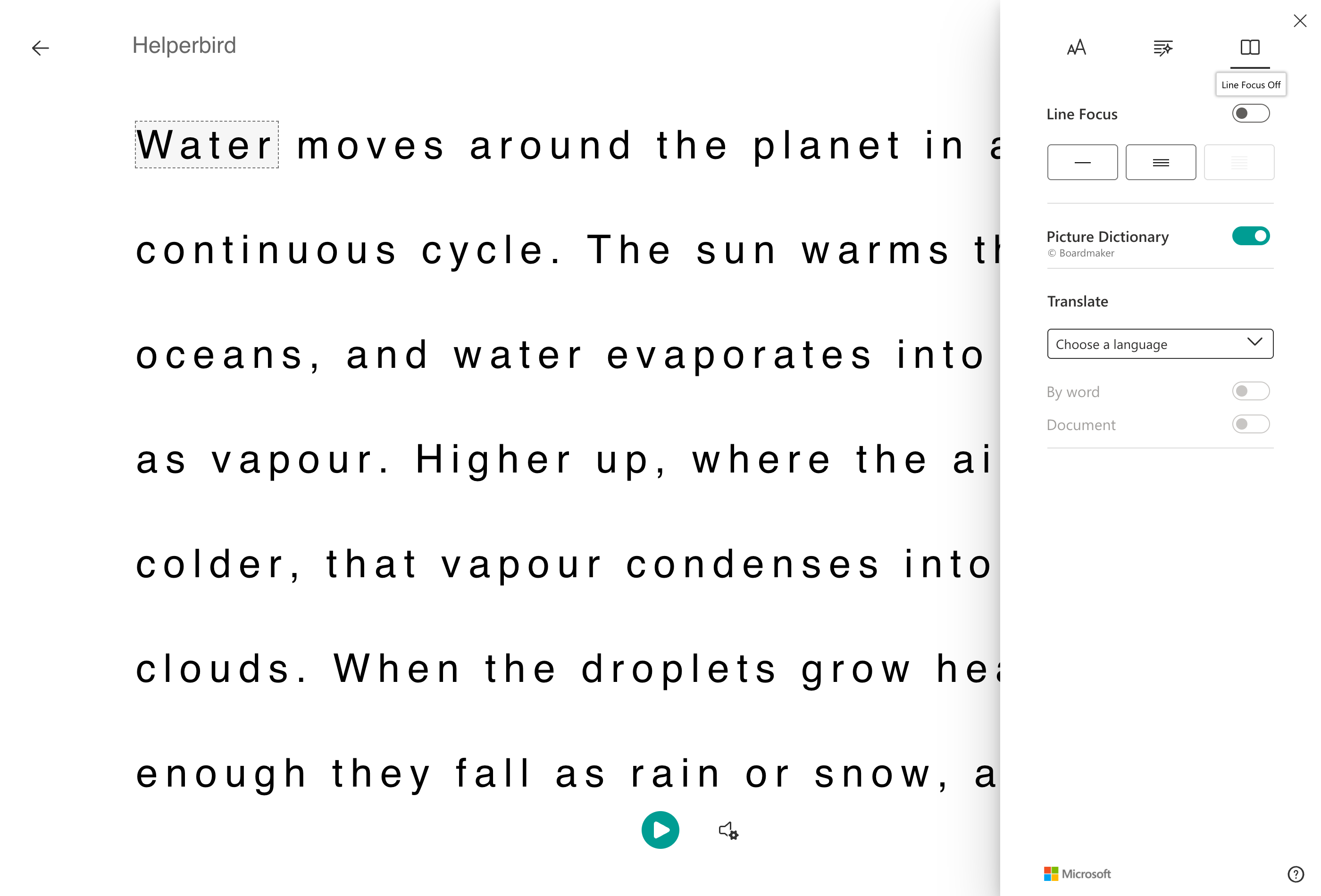
Line Focus
Turn on Line Focus and everything except the line you are reading is dimmed.
Underneath are three widths: one line, three lines, or five lines. One line is the most focused and the most work, because you move it constantly. Three is a good middle. Five keeps some context around you.
Start at three. If you still lose your place, go to one.
Picture Dictionary
On by default. Click any word while it is on and a picture of that word appears, from the Boardmaker symbol set.
It is most useful for concrete nouns, where a picture is quicker than a definition, and for anyone reading in a second language. It cannot illustrate an abstract word, so nothing will appear for something like "however".
For a full definition rather than a picture, use the Helperbird Dictionary.
Next: Text Preferences and Grammar Options.
Need Additional Help?
If you have any questions or run into any issues, please contact the Helperbird support team. You can reach us at Helperbird support. We are happy to help you get the most out of Helperbird.
Printed from the Helperbird Help Center · Updated September 22nd, 2026
Questions? We are happy to help — helperbird.com/support