
How to Open the Helperbird Notepad
Learn how to open the Helperbird Notepad from the extension popup in four steps, so you have a clean, distraction-free place to write inside your browser.
·
- features
- writing
What is the Notepad?
The Helperbird Notepad is a writing space that opens in its own browser tab. You get a page to type on, a formatting toolbar, and buttons for saving, exporting and checking your writing, without leaving your browser.
This page is about getting it open. For what each toolbar button does, see the Notepad toolbar.
Who is This For?
This is helpful for:
- Students drafting an answer or an essay
- Anyone who wants somewhere to write without opening a separate app
- People collecting notes while researching in the browser
- Anyone who finds a busy word processor distracting
Step 1: Open Helperbird
Click the Helperbird icon in your browser toolbar. It looks like a small owl and is usually in the top-right corner.
Step 2: Open All Features
Scroll to the bottom of the Helperbird menu and open All Features.
Step 3: Find Open Notepad
Look through the list for Open Notepad. The row is named for the action, not the feature, so you are looking for "Open Notepad" rather than "Notepad".
If you write often, favourite it so it also appears in Quick Actions at the top of the menu.
Step 4: Start Writing
Click the button on the row. The Notepad opens in a new tab with the toolbar across the top and the writing area below it.
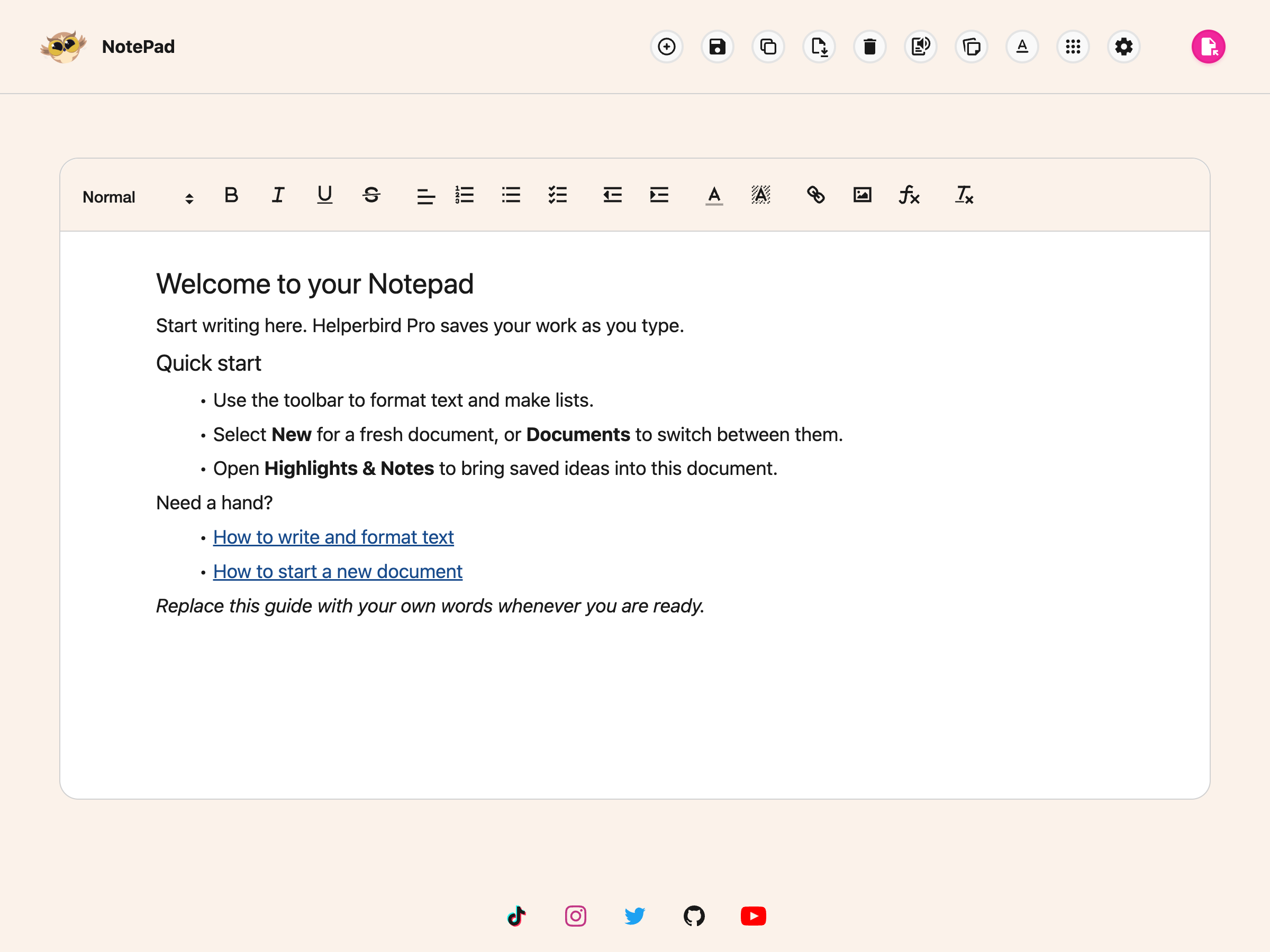
The first time you open it, a short welcome guide explains the workspace. Replace it with your own text when you are ready. Existing documents are not replaced by the guide.
Then format what you have written. Notepad writing and saving require Helperbird Pro. Changes autosave, and you can also select Save explicitly.
The Notepad, Notes, and Reading List quick actions open the same workspace. Your captured items are under Highlights & notes; saved pages open in the Reading List panel.
Need Additional Help?
If you have any questions or run into any issues, please contact the Helperbird support team. You can reach us at Helperbird support. We are happy to help you get the most out of Helperbird.
Printed from the Helperbird Help Center · Updated September 22nd, 2026
Questions? We are happy to help — helperbird.com/support