
How to Hear Your Sentence Read Back as You Type

Learn how to turn on Read sentence in Helperbird, so each sentence is read back to you as soon as you finish it and you can hear whether it makes sense.

·

  • features

What This Does

Hearing your own writing read back is one of the most reliable ways to catch a sentence that does not say what you meant. Your eye skips over it; your ear does not.

With Read sentence on, Helperbird speaks each sentence back to you the moment you finish it, so you catch problems as you write rather than at the end.


Who is This For?

This is helpful for:

  • Anyone with dyslexia who finds proofreading by eye unreliable
  • Students who have been told to read their work aloud, done automatically
  • Anyone writing in a second language who wants to hear whether it sounds right
  • People who think more clearly by ear than by eye

Step 1: Turn Word Prediction On

Read sentence lives inside word prediction and only works while prediction is running. Open Helperbird, go to All Features, and turn on Word prediction.


Step 2: Turn On Read Sentence

Open the word prediction options and turn on Read sentence.
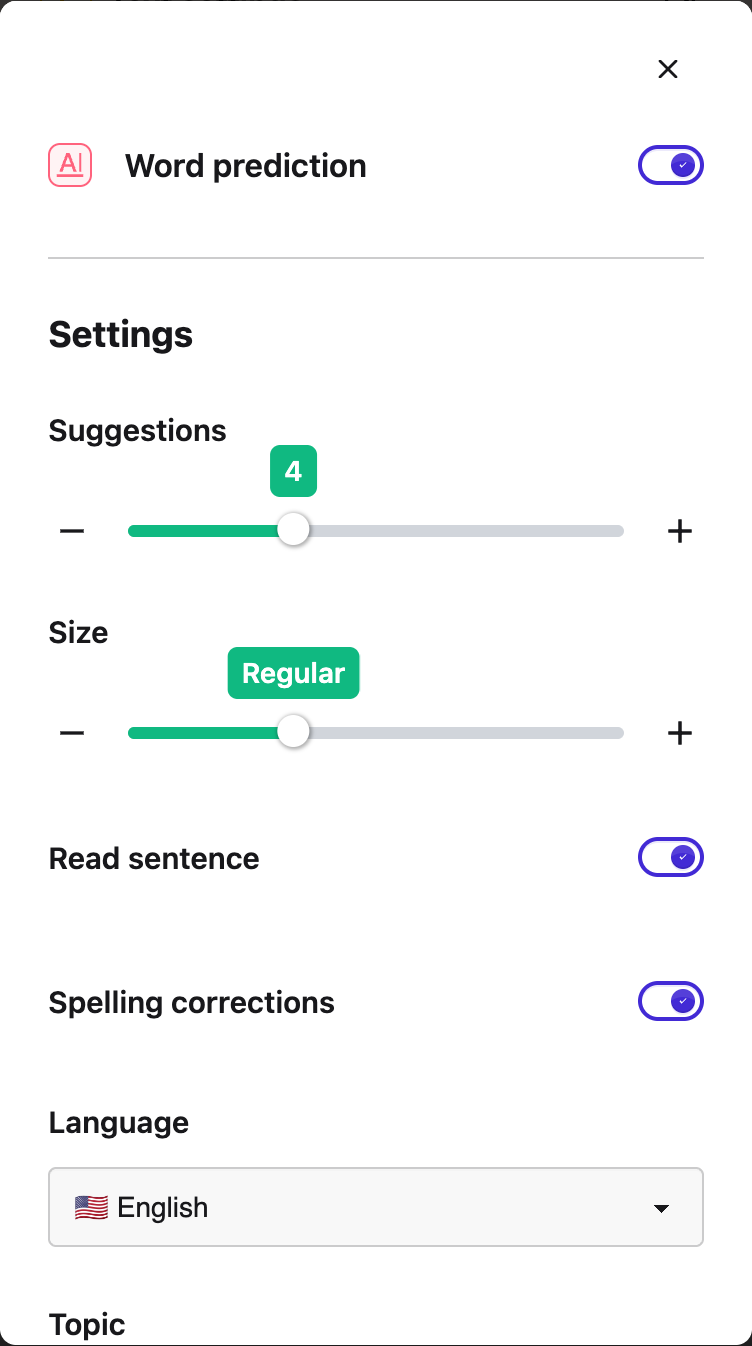
The Read sentence toggle in Helperbird's word prediction options


Step 3: Write a Sentence

Type as normal. When you finish a sentence with a full stop, a question mark or an exclamation mark, Helperbird reads that sentence back to you.

It reads whole sentences, not each word as you type it, so it does not interrupt you mid-thought. If you never type a full stop, nothing is read.


Which Voice It Uses

It uses the same voice, speed and pitch as the rest of Helperbird's text to speech. Change them there and this follows.

It is worth picking a voice you are happy to hear often, and a slightly faster speed than you would use for reading a page, since you already know what the sentence says.


If You Hear Nothing

  • Check word prediction itself is on. Read sentence does nothing on its own.
  • Check you finished the sentence with ., ? or !.
  • Check a voice is chosen in your text to speech settings, and that your device is not muted.

This pairs well with word prediction for help while you write, and with the grammar checker for a check once you have finished.


Video Tutorial

Coming soon


Need Additional Help?

If you have any questions or run into any issues, please contact the Helperbird support team. You can reach us at Helperbird support. We are happy to help you get the most out of Helperbird.

What People Are Saying

Join over 1,000,000 people who use Helperbird every day.

I love Helperbird!!! It's very user friendly from someone who has learning challenges because of ADHD and Dyslexia.There are so many useful features and new updates.

Entertainment Studio

Entertainment Studio

Helperbird user

Immersive Reader from Microsoft is amazing, but my friends in Google districts were missing out until I found Helperbird. Great for proofreading! Simply highlight the text and have it read back to you, change the spacing in your view, highlight parts of speech, even translate by word or by document to have it read to you and adjust the speed! So amazing that I posted a YouTube tutorial within days of installing it. Plus, unlike many extensions, it didn't ask for obnoxious permissions like asking to delete everything in my Google Drive. #Winner #a11y

GK Techies

GK Techies

Helperbird user

Insightful functionality. Well done.

David Linde

David Linde

Helperbird user

This is my first google review ever! I have to share that the accessibility and support for independent access for students that Helperbird provides, is a game changer. It is constantly being updated with new features based on feedback and it is extremely user friendly. The ability to customize the settings allows students to have control over their own learning, aligning with Universal Design for Learning. Looking forward to sharing with students and fellow educators on a daily basis. Thanks, Helperbird team!

Kelli Suding

Kelli Suding

Assistive technology specialist

It's been a great help. Im very happy I made the switch.

Gregory Arnold

Gregory Arnold

Helperbird user

Let me tell you, I didn't know how badly I needed this until I got it. It was much like when I got glasses, I had just assumed that was how everyone saw the world...then it wasn't. Thank you Helperbird for the efforts you put forth in this lovely extension for everyone to use. The fact that you can use so much on the free just goes to show that this is something to help aid people not just some money grab. However with the pricing it still couldn't be a money grab. Thank you all again for the efforts you put forth so others can enjoy the internet more fully.

Matthew Burns

Matthew Burns

Health care worker

Helperbird logo: Stylized owl with large yellow eyes and a beige face, against a green background.

Download Helperbird

Make browsing easier and more accessible with tools like Text to Speech, Immersive Reader, and more.