How to Look Up a Word from the Floating Toolbar

Learn how to select a word on any page and look up its meaning straight from Helperbird's floating toolbar, without leaving what you are reading.

·

  • features

What This Does

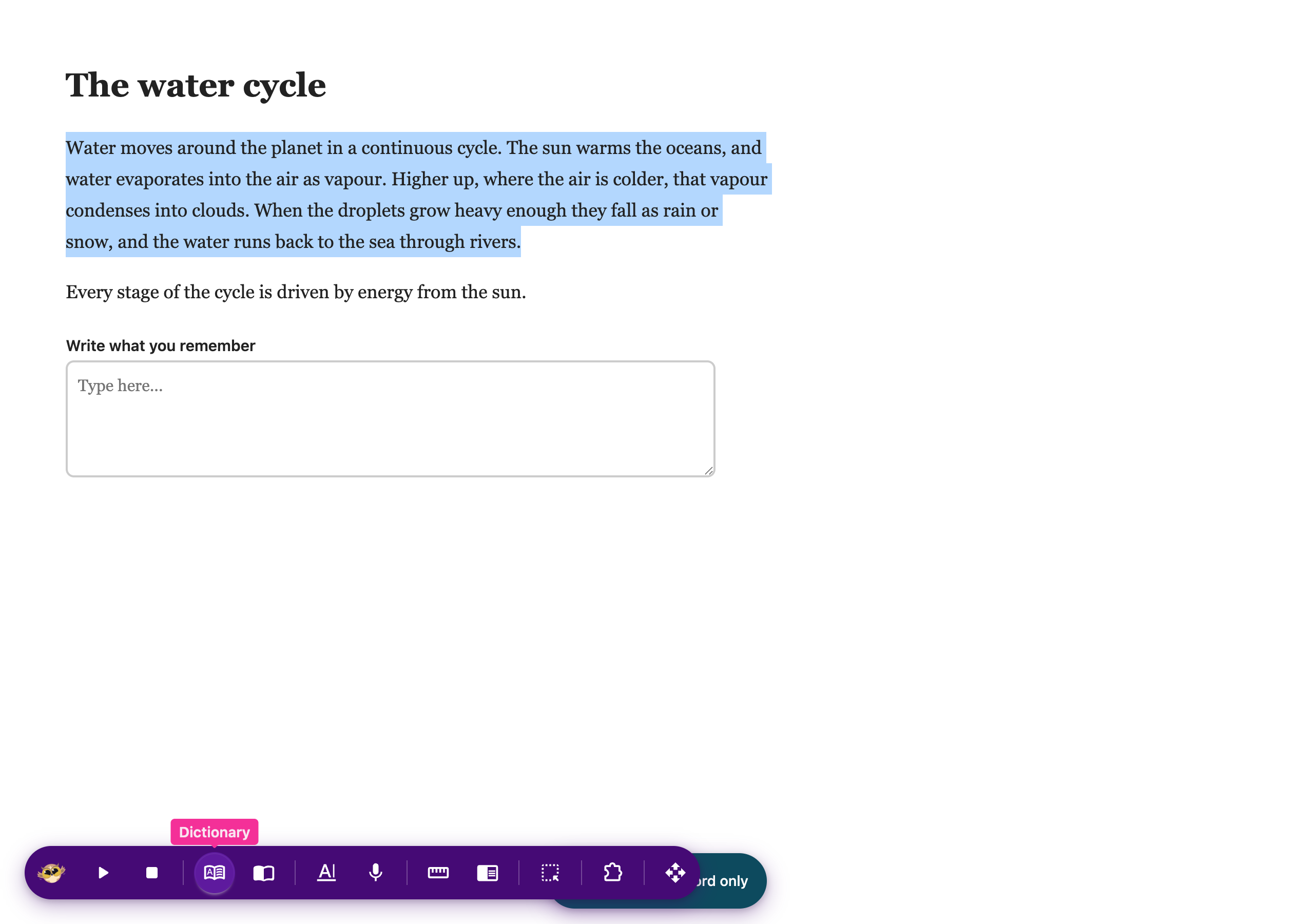
Select a word you do not know and press Dictionary. Helperbird looks it up for you.


Who is This For?

This is helpful for:

  • Students meeting new vocabulary while reading
  • Anyone reading something written above their usual level
  • People learning English
  • Anyone who would otherwise open a new tab and lose their place

Step 1: Open the Toolbar

If the toolbar is closed, it sits in the bottom-left corner as a single round button. Click it to open the row of tools.
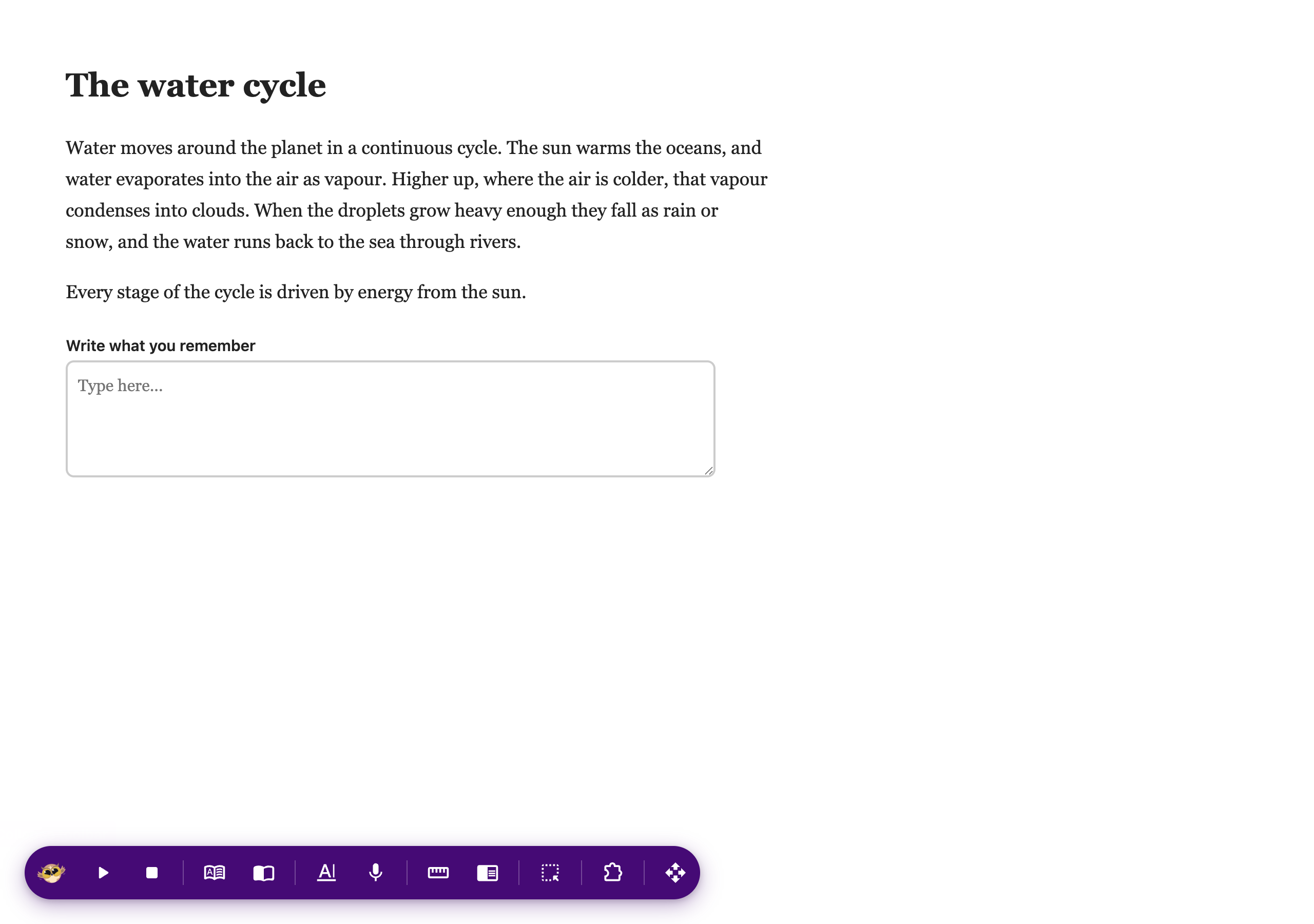
The Helperbird floating toolbar open along the bottom of a web page, showing its row of tools

If you do not see it at all, it needs turning on first. See how to turn on the floating toolbar.


Step 2: Use It

Drag across the word you want, then press Dictionary on the toolbar.

Looking a selected word up in the dictionary from the Helperbird floating toolbar

For definitions, examples and similar words in a fuller view, see the Helperbird Dictionary.


Video Tutorial

Coming soon


Need Additional Help?

If you have any questions or run into any issues, please contact the Helperbird support team. You can reach us at Helperbird support. We are happy to help you get the most out of Helperbird.

What People Are Saying

Join over 1,000,000 people who use Helperbird every day.

Helperbird is a very useful and smartly designed tool that will most definitely make the browsing life of any user suffering from from dyslexia or is even remotely visually impaired a lot easier. It’s very easy to use, has the ability to synchronize settings on multiple devices, and is very efficient thanks to a useful set of straightforward customization options.

Vladimir Ciobica

Vladimir Ciobica

Helperbird user

Let me tell you, I didn't know how badly I needed this until I got it. It was much like when I got glasses, I had just assumed that was how everyone saw the world...then it wasn't. Thank you Helperbird for the efforts you put forth in this lovely extension for everyone to use. The fact that you can use so much on the free just goes to show that this is something to help aid people not just some money grab. However with the pricing it still couldn't be a money grab. Thank you all again for the efforts you put forth so others can enjoy the internet more fully.

Matthew Burns

Matthew Burns

Health care worker

Thank you!! Love the tint feature.

A Google User

A Google User

Helperbird user

I really liked the ease of setting up and also accessing the tool while you are on chrome. I had no trouble, and within a week found myself using it without even noticing.

Daniel C.

Daniel C.

Account Executive

I love and use Helperbird for Chrome and I think it's a great tool!

Walter Washburn

Walter Washburn

Helperbird user

It's easy to use with every webpage since it's just an extension. You can access lots of different functions to declutter a page (show only the relevant text and not ads, for example). You can add post it notes to annotate, and it has things like text-to-speech.

Harmony M.

Harmony M.

Program Manager

Helperbird logo: Stylized owl with large yellow eyes and a beige face, against a green background.

Download Helperbird

Make browsing easier and more accessible with tools like Text to Speech, Immersive Reader, and more.