
Voice typing settings — Helperbird Help Docs
Choose your Voice typing language, mode and spoken punctuation in Helperbird Settings. Try your microphone and set up dictation into supported page fields.
Jump to the stepsOn this page8 sections
What This Does
Choose the language Helperbird listens for and how it writes your words. Your choices save automatically and apply to your next recording.
Voice typing needs Helperbird Pro, an internet connection and microphone access. These settings are separate from the voice that reads text aloud.
Step 1: Open Settings
- Open Options in the Voice typing window.
- Choose Voice typing settings.
Settings opens in a new tab, or switches to an already-open Settings tab. In PDF Reader and Equation Editor, find Voice typing settings inside Settings.
In Firefox, press F6 if keyboard focus stays in the sidebar.
Step 2: Choose Your Language
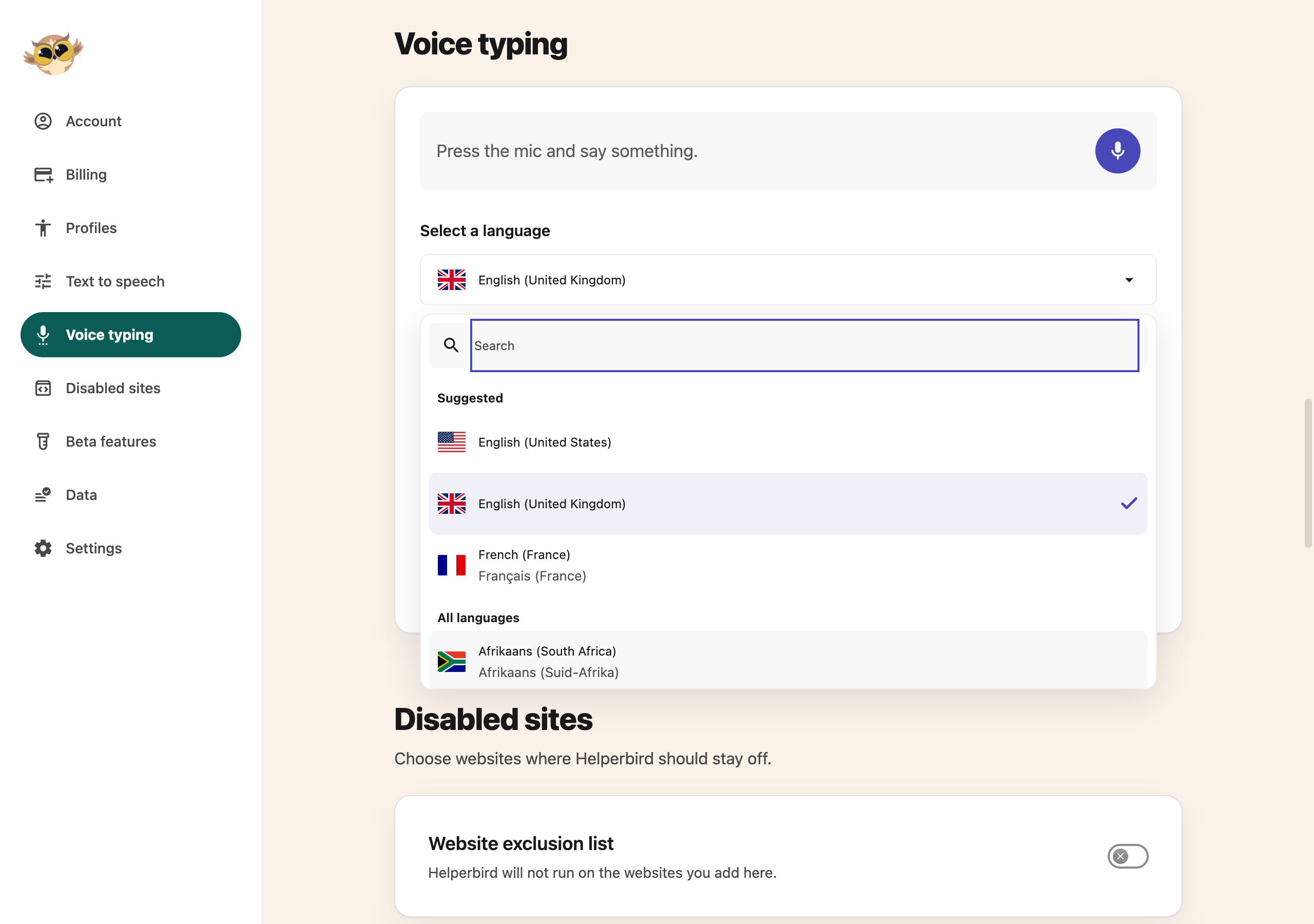
- Open Select a language.
- Type a language name in the picker, or browse its list.
- Choose the language and region you will speak.
The list shows language names and flags. Your browser languages and recent choices appear first. The written name identifies each language even when a flag is unavailable.
Step 3: Choose a Mode
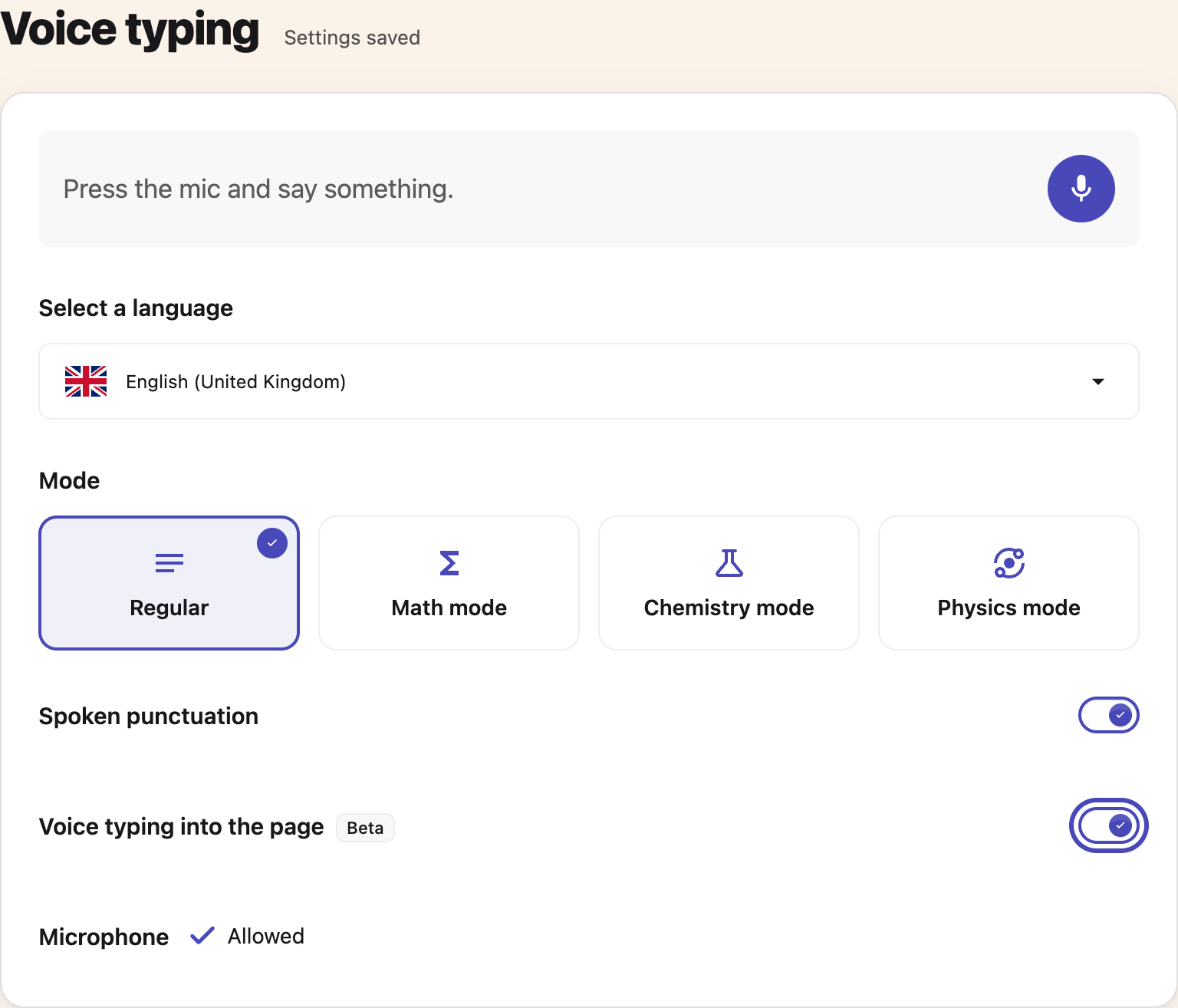
Choose one card under Mode:
- Regular writes ordinary text.
- Math mode writes mathematical notation.
- Chemistry mode writes chemical formulas.
- Physics mode writes scientific notation and units.
In Regular, turn Spoken punctuation on to turn supported spoken commands into punctuation marks. Turn it off to keep those words as words. Other modes handle notation separately.
See Math mode and Chemistry and Physics modes for examples.
Step 4: Try Your Microphone
- Press Start voice typing beside the sample box.
- Allow microphone access if asked.
- Speak a short sentence.
- Press the microphone again to stop.
The sample stays on this Settings page. It does not insert words into another open Voice typing window. Check the words before using dictation for your work.
Type into the Page
Turn on Voice typing into the page to use direct dictation from the floating toolbar. This Beta option starts off. Follow dictating into the page to choose the field where your words should go.
Troubleshooting
Blocked: allow the microphone for Helperbird in your browser. If your school manages this permission, ask your IT team. A website's microphone permission is separate.
No microphone found: connect a microphone or headset, then try again.
Managed by your admin: your school or workplace controls that setting.
A change has not reached your recording: stop and start again. An active recording keeps the language and mode it started with.
Need Additional Help?
Contact Helperbird support with your browser and the message you see.
Printed from the Helperbird Help Center · Updated October 26th, 2026
Questions? We are happy to help — helperbird.com/support