
How to Change the Word Prediction Layout
Show Helperbird's word suggestions across a row or stacked in a vertical list. Choose a layout and keep your usual prediction tools.
On this page
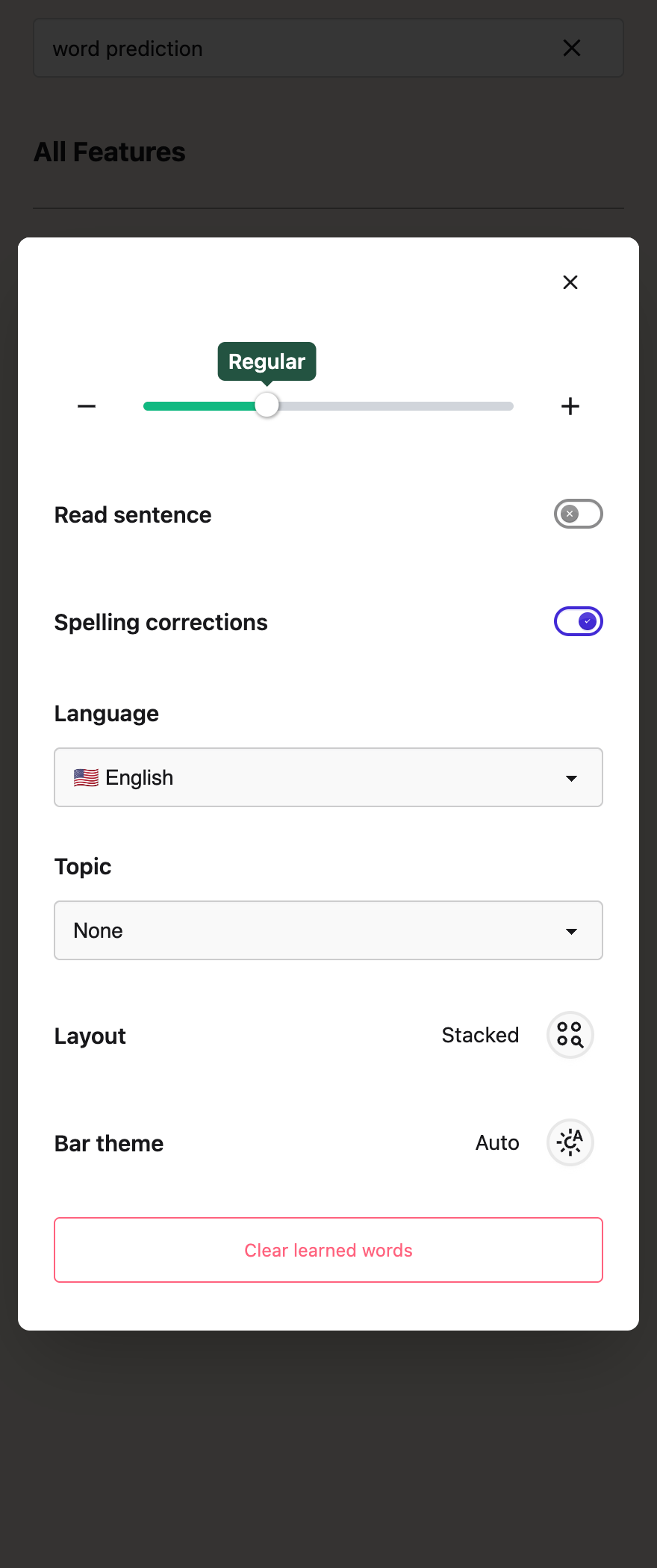
Choose a layout
- Open Helperbird and expand All Features.
- Open Word prediction.
- Next to Layout, select the circle button to switch between Across and Stacked.
Across is the original horizontal bar. Stacked shows one suggestion per row. Helperbird remembers your choice. You can switch back at any time.
Use your suggestions
Click a word to insert it, or its speaker button to hear it with Text to Speech. In Stacked view, use Alt + Down and Alt + Up to move between suggestions, then Alt + Enter to insert the selected word. The existing Alt + Left, Alt + Right and numbered shortcuts still work.
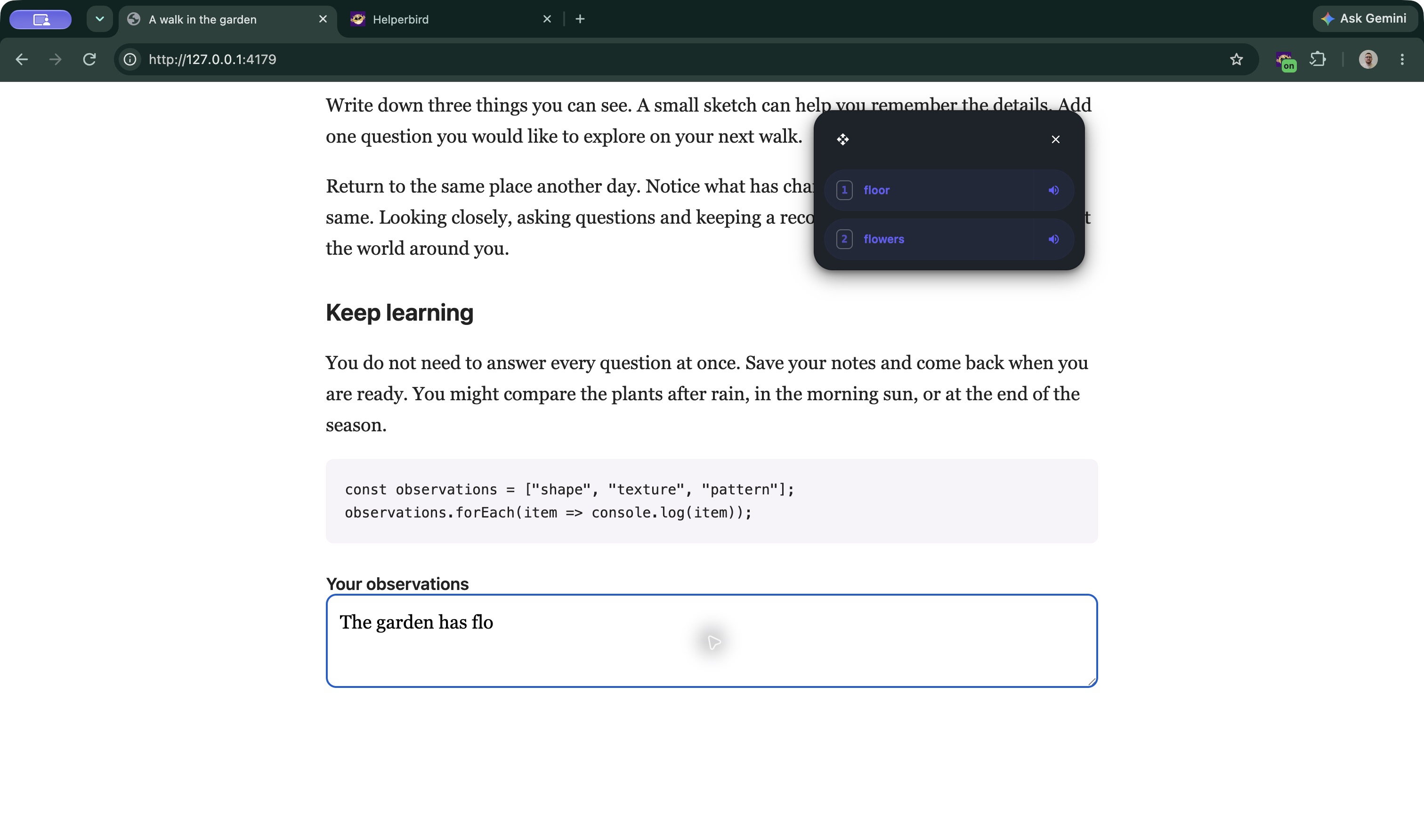 View full-size image (opens in a new tab)
You can still change the text size, theme and number of suggestions. Drag the panel using its move handle. If the list is taller than the available space, scroll inside it to see more suggestions.
In Google Docs, the panel follows the cursor until you drag it to your preferred spot. Changing the layout keeps the same predictions, spelling corrections and read-aloud tools.
See the Word prediction guide for setup and the other controls.
Printed from the Helperbird Help Center · Updated September 25th, 2026
Questions? We are happy to help — helperbird.com/support