
How to Turn On the Reading Guide from the Floating Toolbar
Learn how to switch on Helperbird's reading guide from the floating toolbar, so a bar follows your place down the page and you stop losing your line.
·
- features
- reading
What This Does
The Reading guide button brings back the ruler you last chose in Dyslexia support. This may be the Reading guide, Dyslexia ruler or Focus ruler.
Who is This For?
This is helpful for:
- Anyone who loses their line in a wall of text
- People with dyslexia or visual stress
- Students working through long passages
- Anyone reading a page with narrow columns or small type
Step 1: Open the Toolbar
If the toolbar is closed, it sits in the bottom-left corner as a single round button. Click it to open the row of tools.
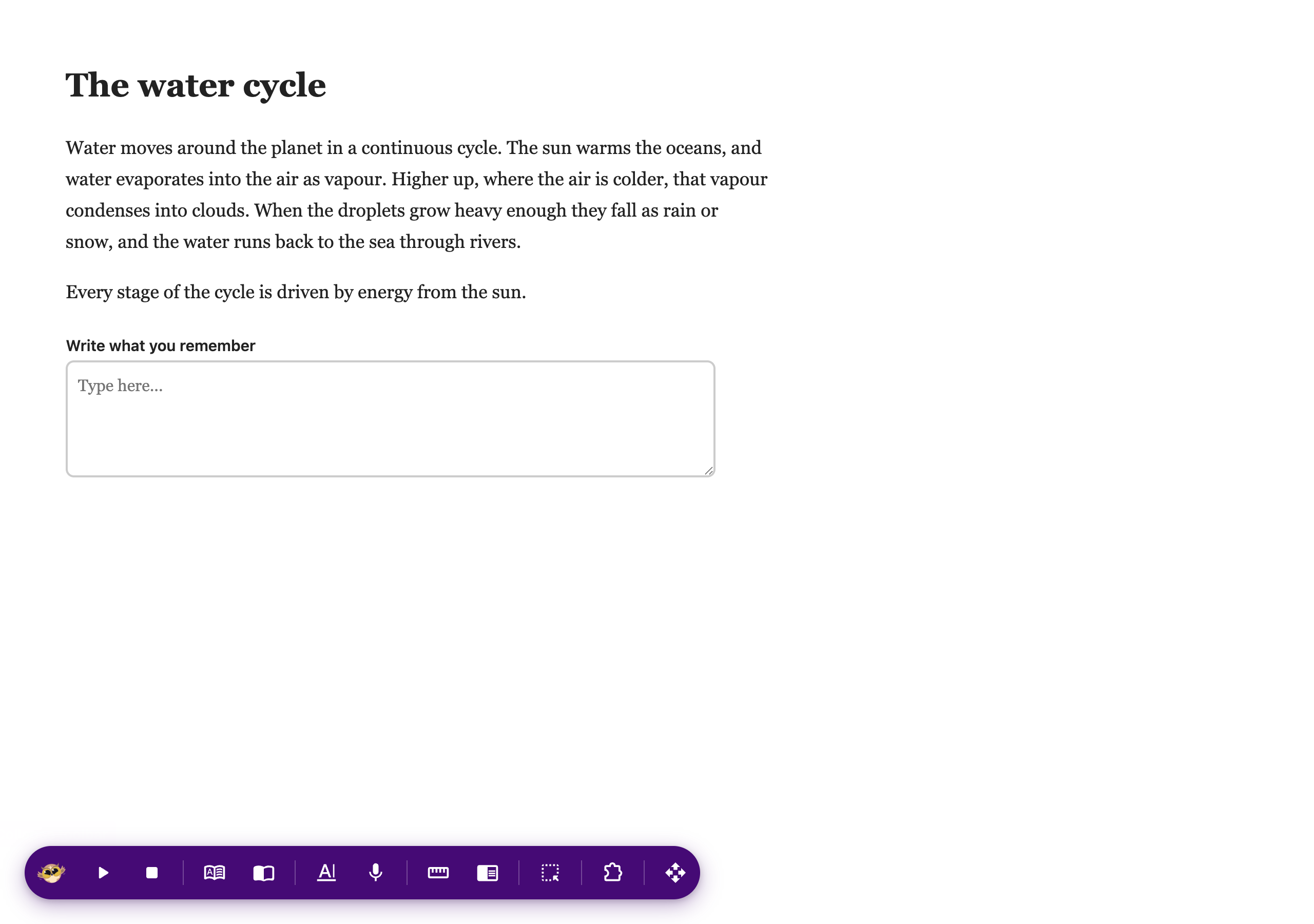
If you do not see it at all, it needs turning on first. See how to turn on the floating toolbar.
Step 2: Use It
Press Reading guide on the toolbar. Your chosen ruler appears with its saved settings.
Press it again to turn it off.
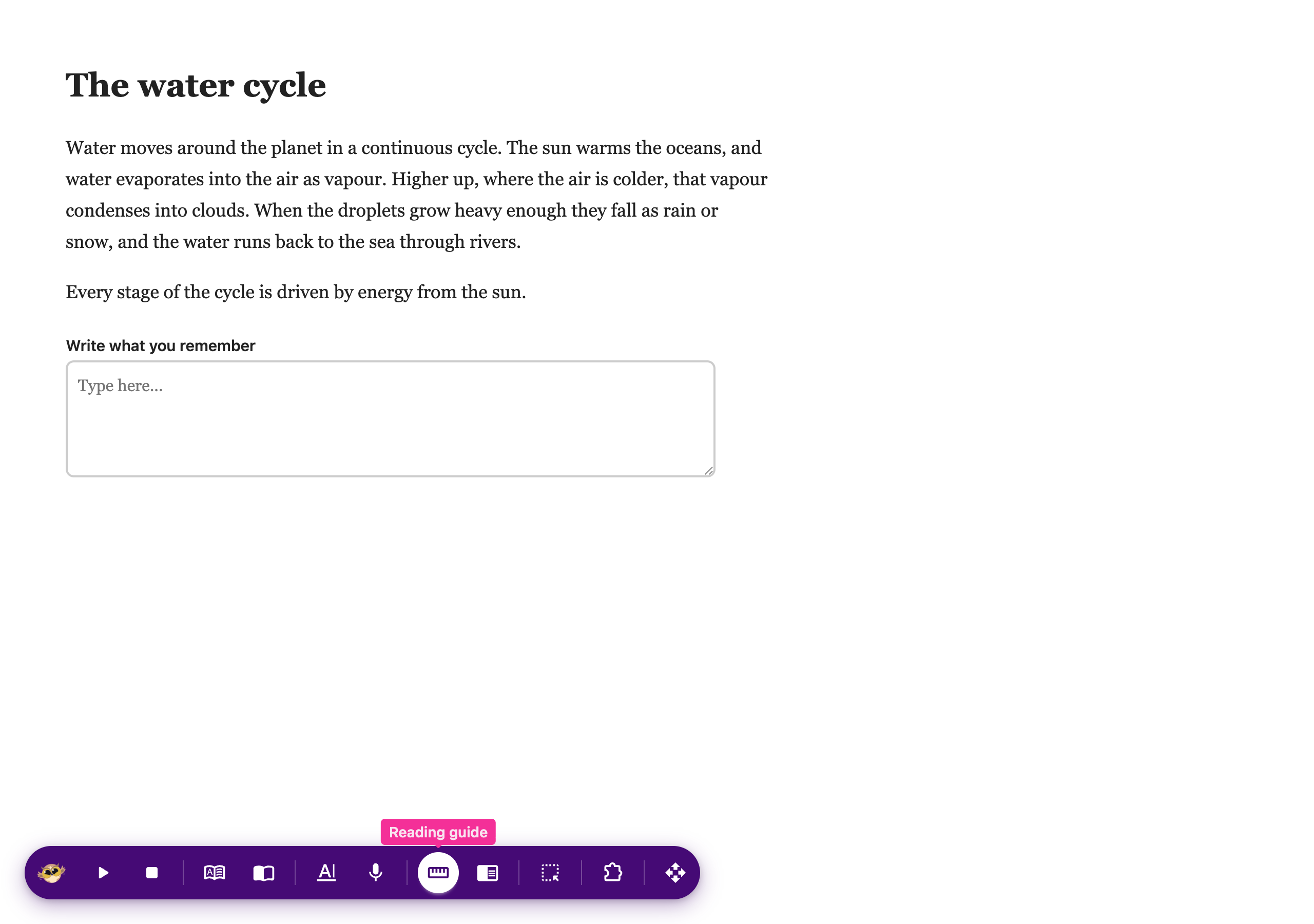
To change the Reading guide's height, width, color or opacity, open Dyslexia support in the popup. Its width is independent of the Dyslexia ruler. See Reading guide settings.
Need Additional Help?
If you have any questions or run into any issues, please contact the Helperbird support team. You can reach us at Helperbird support. We are happy to help you get the most out of Helperbird.
Printed from the Helperbird Help Center · Updated September 22nd, 2026
Questions? We are happy to help — helperbird.com/support