
How to Dictate an Equation with Your Voice
Learn how to speak a maths equation into Helperbird's Equation Editor instead of typing it, and what the Listening and Hearing messages mean.
·
- features
- maths
What This Does
Rather than typing an equation, you can say it. Helperbird listens and writes the maths into the editor for you.
Who is This For?
This is helpful for:
- Anyone who finds typing slow or painful
- People who know how to say an equation but not how to write it
- Students working with their hands full, or away from a keyboard
- Anyone who cannot remember the LaTeX for what they want
How to Do It
Click Voice typing in the toolbar. It is the microphone.
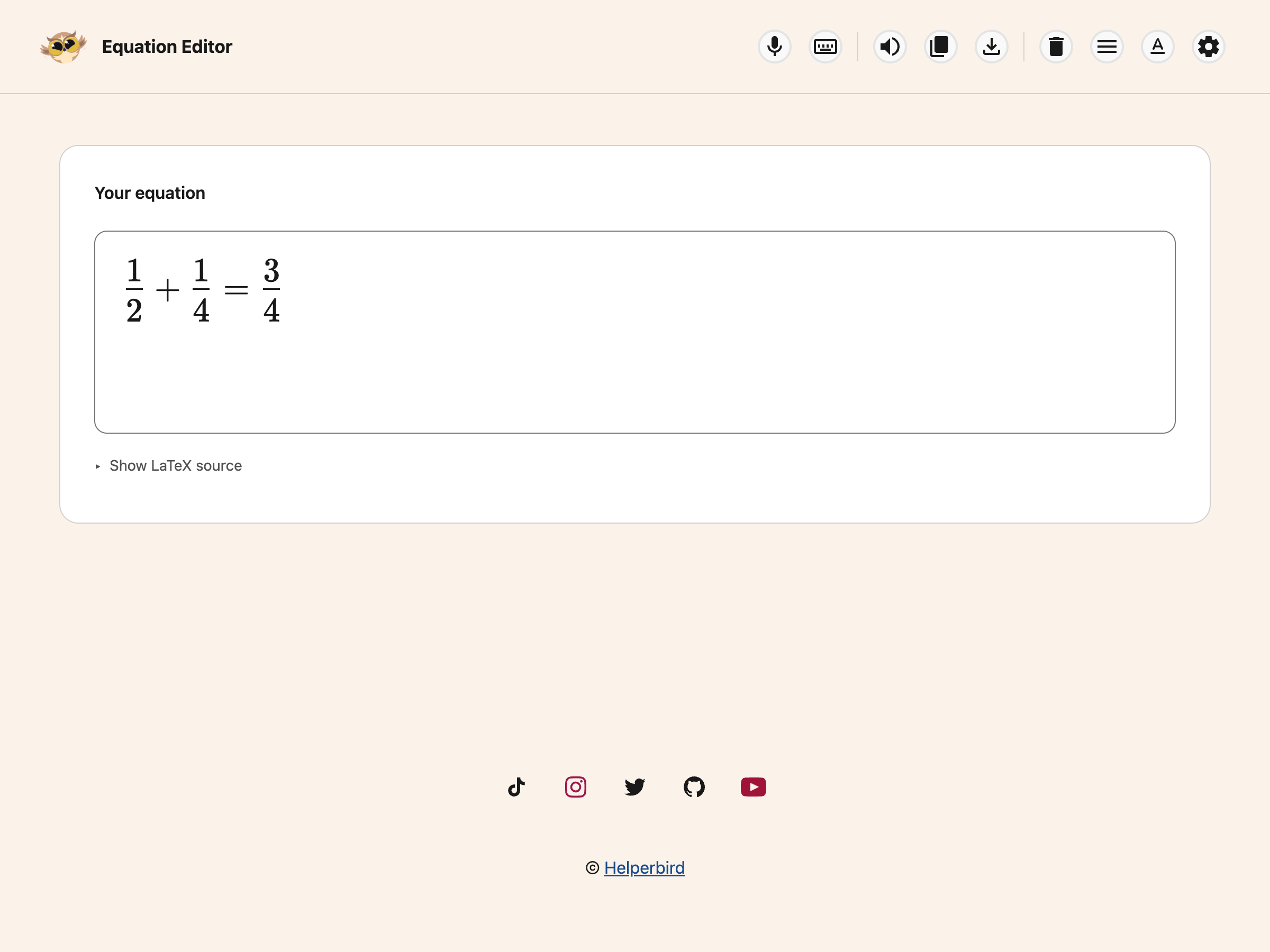
Your browser will ask for permission to use the microphone the first time. Say your equation out loud, then click the button again to stop.
What the Messages Mean
You will see the editor move through a few states:
- Connecting while it gets ready
- Listening when it is waiting for you to speak
- Hearing while it is picking up your voice
If it never gets past Connecting, check that your browser has microphone permission for this page.
If It Mishears You
Maths dictation is harder than ordinary dictation, because so much depends on grouping. Say the structure out loud as you would to a person: "one over two" rather than "half", and "x squared plus three" rather than trailing off.
Anything that comes out wrong can be fixed by typing, or with the maths keyboard. You can also dictate ordinary text elsewhere in Helperbird with speech to text.
Need Additional Help?
If you have any questions or run into any issues, please contact the Helperbird support team. You can reach us at Helperbird support. We are happy to help you get the most out of Helperbird.
Printed from the Helperbird Help Center · Updated September 22nd, 2026
Questions? We are happy to help — helperbird.com/support