
How to Check Your Grammar on Any Website with Helperbird
Helperbird's Grammar Checker corrects grammar, spelling and punctuation across a whole passage. Learn how to use it, and how it differs from spell check.
·
- features
- writing
What is the Grammar Checker?
The Grammar Checker reads a whole passage and corrects the grammar, spelling and punctuation in it. You type or paste text into it, or highlight text on a page, and one corrected version comes back. It does not change your meaning or tone.
Your text goes to OpenAI to be checked, and is not kept there. See how Helperbird handles your data. You need a connection for this to work.
This is a Helperbird Pro feature. On the free plan the panel still opens, but the Check button is greyed out and cannot be pressed.
Grammar and Spell Check Are Two Different Tools
Both help with spelling, but not in the same way, and you find them in different places.
| Compare | Spell check | Grammar Checker |
|---|---|---|
| What it checks | Spelling, one word at a time | Grammar, spelling and punctuation, across a whole passage |
| When it runs | While you type | When you press Check |
| What does the work | Your browser | OpenAI |
| Where you find it | A keyboard shortcut, or a Quick actions tile once you add one | The Grammar row in All Features |
Both are Helperbird Pro features. Both work in Chrome, Edge, Firefox, Safari and on iPad.
Spell check switches on your browser's own checker for the page, so misspelt words get the red wavy underline as you type. Helperbird adds no dictionary and no suggestions, and nothing you type is sent anywhere. Press Option + 0 on a Mac, or Alt + Shift + 0 on Windows, Linux and Chromebook, with keyboard shortcuts turned on in Settings. Spell check is not in the All Features list. If you add it to Quick actions, the tile is labelled Spell check but the caption under it reads Grammar. See how to turn on spell check on any website.
The rest of this page is about the Grammar Checker.
Who is This For?
This feature is helpful for:
- Students checking an essay, email or assignment before sending it
- People with dyslexia who find proofreading their own writing hard
- Anyone who writes in a second language
- Anyone who wants a passage read over, not one word at a time
- Anyone who wants to improve their writing
Step 1: Open Helperbird
Click the Helperbird icon in your browser toolbar. It looks like a small owl and is usually in the top-right corner of your browser.
Step 2: Open the All Features Section
Scroll to the bottom of the Helperbird menu and open All Features.
Step 3: Find Grammar
The list runs roughly A to Z. Look down it until you see Grammar.
Step 4: Open the Check Panel
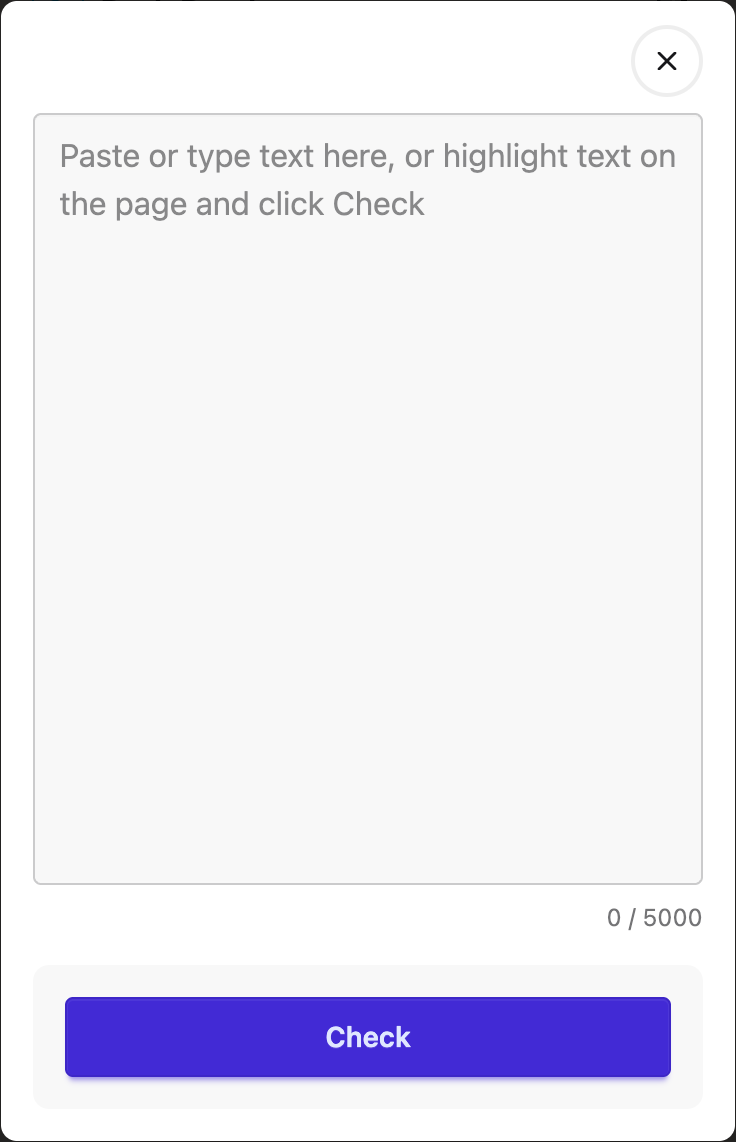
Click Grammar. The Grammar panel opens with a box for your text and a Check button.
Step 5: Add Your Text
Type or paste your writing into the box. The Grammar Checker takes up to 5,000 characters at a time, which is roughly two pages. The counter underneath shows how much of that you have used, and turns red once you pass 4,500.
The panel opens empty. If you highlighted text on the page first, leave the box empty and Helperbird picks that selection up when you press Check. A selection longer than 5,000 characters is cut to fit.
Step 6: Press Check
Click Check. Your text goes off to be checked and a corrected version comes back.
Reading the Corrections
The result has two tabs.
Changes marks the corrections against what you wrote. Removed words are struck through and the replacements are highlighted, so you can see what changed. A badge counts them. If your writing was already right, you get No changes needed.
Corrected text is the clean version with no markup.
Three buttons come with the result. Listen opens Text to speech with the corrected text already loaded, using the voice and speed you set there. Nothing plays until you press Play. Start over empties the panel, including what you typed. Copy puts the corrected version on your clipboard.
Where Else the Grammar Button Appears
There is also a Grammar button in the Voice typing panel and in the notes editor of the PDF Reader. In the PDF Reader the corrected version replaces your note. In Voice typing it replaces the transcript in the panel, and you copy it out from there with the Copy button.
Those two buttons check the first 1,000 words only. Anything past that is dropped without a warning.
What It Does Not Do
- It only runs when you press Check, not while you type.
- It does not underline mistakes on the page or correct them where you wrote them.
- It shows you what changed, not why.
- There is no language picker, no personal dictionary and no tone or style rewriting.
- Text under 10 characters shows an error instead of a correction.
- It needs a connection. If a check takes longer than 30 seconds, it stops.
- It is not part of the Google Docs, Slides and Sheets add-ons.
Need Additional Help?
If you have any questions or run into any issues, please contact the Helperbird support team. You can reach us at Helperbird support. We are happy to help you get the most out of Helperbird.
Printed from the Helperbird Help Center · Updated September 22nd, 2026
Questions? We are happy to help — helperbird.com/support