
How to Search and Zoom a PDF in Helperbird
Search the current PDF page, move between matches and adjust zoom in Helperbird. Use Fit width or Fit page to read comfortably. These PDF tools are all free.
Jump to the stepsOn this page6 sections
What This Does
Find a word on the PDF page you are reading, or make the page a comfortable size. Search, zoom, Fit width and Fit page are free.
Search checks one page at a time. It does not search every page in the document or recognize text inside a scan.
Step 1: Open PDF Tools
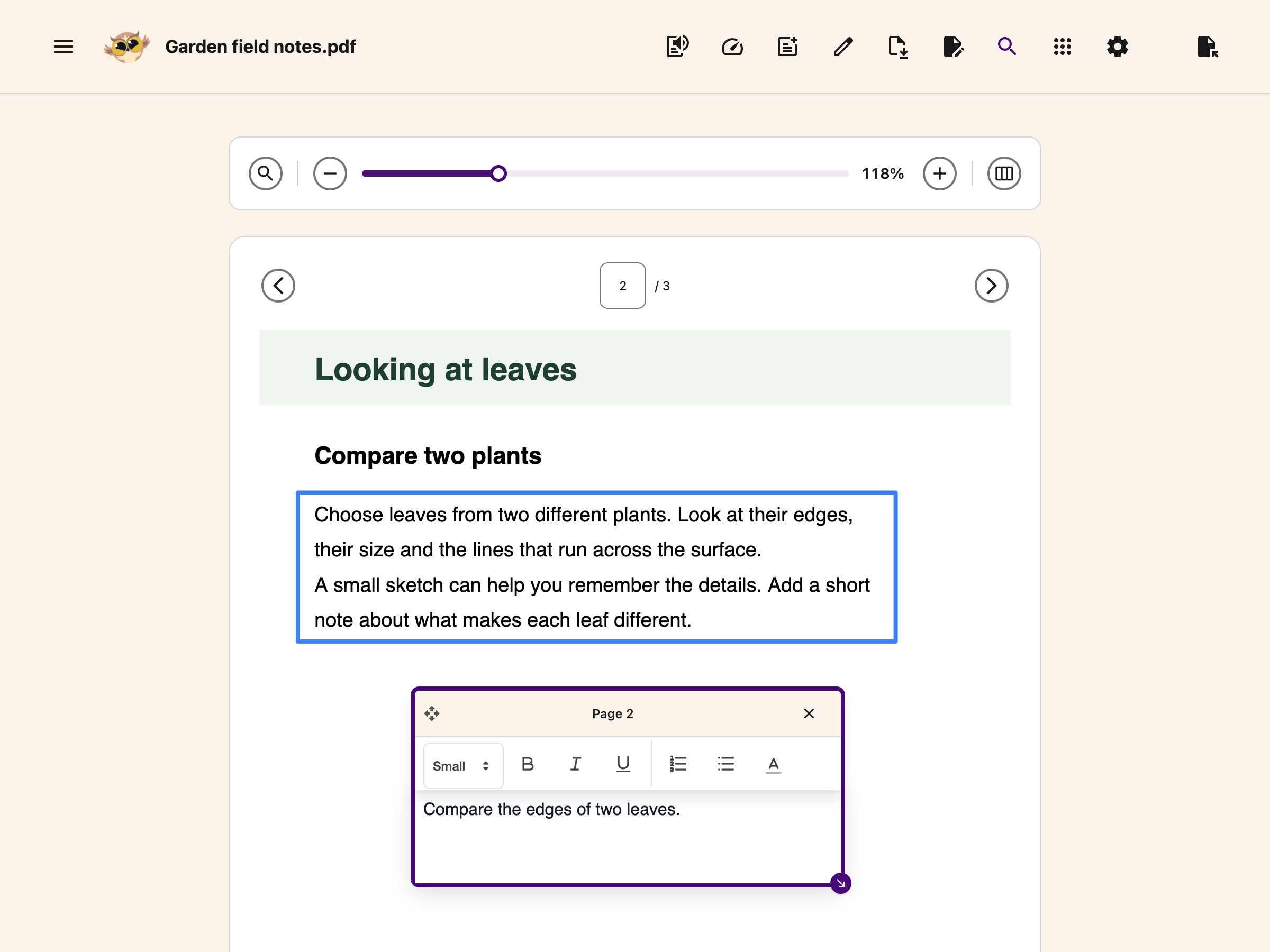
Open your PDF in Helperbird. Choose Zoom and search in the header to show the bar above the document.
Choose the same button again to hide the bar. Hiding it keeps your search state.
Step 2: Search the Current Page
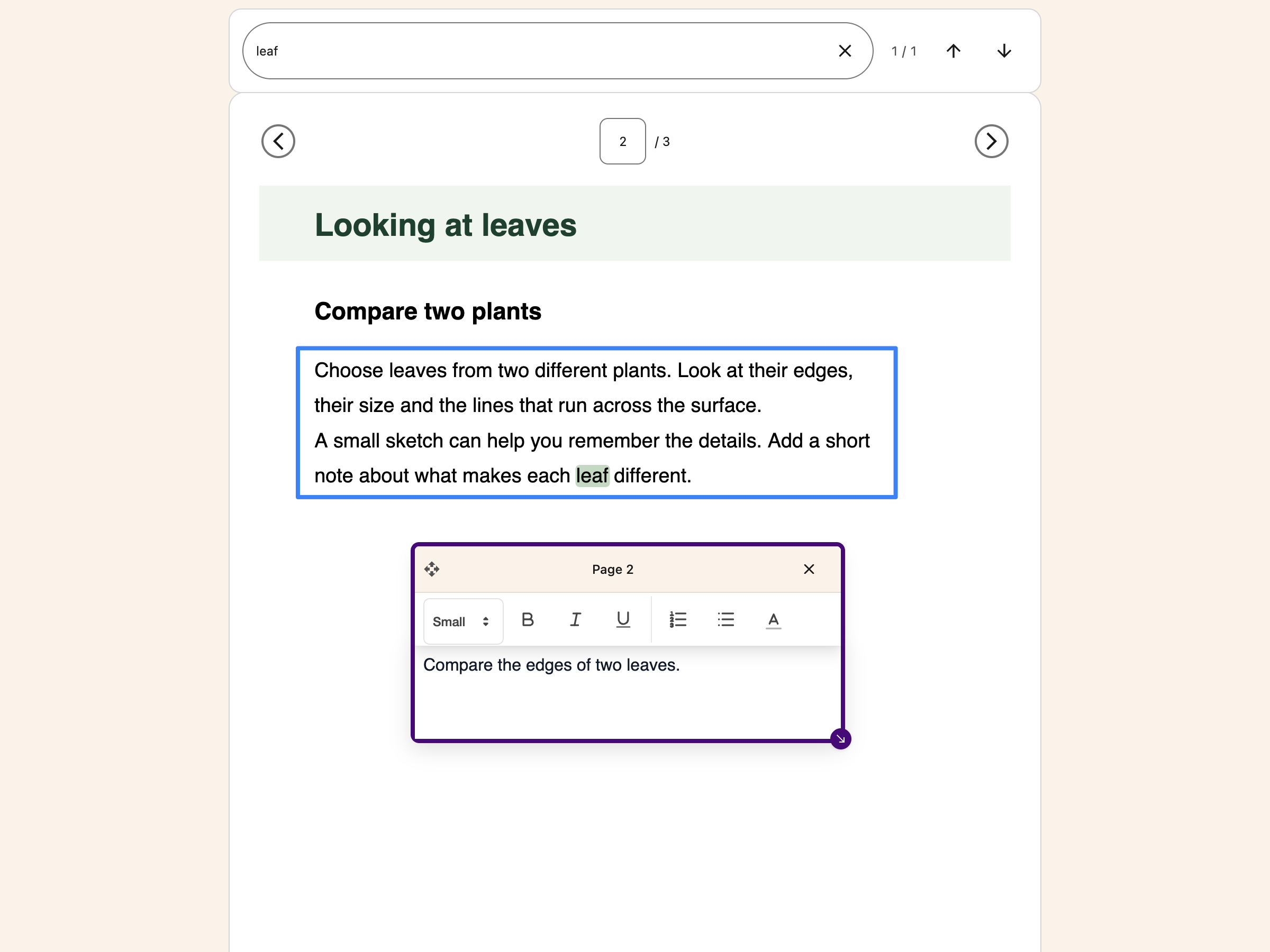
Choose Search in the PDF Tools bar and type a word or phrase. Search replaces the zoom controls while it is open.
Matches are highlighted on the current page. Use the next and previous match buttons to move through them. The counter shows your place among the matches on this page.
You can also press Enter for the next match or Shift + Enter for the previous one. Press Escape to close search and return focus to its button.
 View full-size image (opens in a new tab)
Turn to another page to search there. Your query stays in the search box, and the matches and count update for that page.
Step 3: Adjust the View
Close search to return to the zoom controls.
- Drag the zoom slider, or use minus and plus, to change the page size.
- Choose Fit width to fill the available reading width.
- Choose Fit page to see the page within the available space.
Zoom changes your view. It does not change the page size in a downloaded PDF.
Troubleshooting
No matches: Check the spelling and current page number. For a scan, use Screenshot Reader to extract the text.
The zoom buttons are missing: Close search, or show Zoom and search again.
You are viewing a translation: PDF search and view controls return you to the original PDF. Use the translation tabs to compare the two views.
Need Additional Help?
See the PDF Reader guide or contact Helperbird support.
Printed from the Helperbird Help Center · Updated September 25th, 2026
Questions? We are happy to help — helperbird.com/support