
How to Change Video Playback Speed on Any Website
Speed up or slow down videos with Helperbird. Learn how to choose a pace from 0.1x to 2x on YouTube, Vimeo and other websites that use standard HTML5 video.
·
- features
What is Video Playback Speed?
The Video Playback Speed feature lets you control how fast or slow videos play on any website. You can slow videos down to 0.1x speed for detailed viewing, or speed them up to 2x to get through content faster. It works on any website that uses HTML5 video, including YouTube, Vimeo, and most modern video players.
Who is This For?
This feature is helpful for:
- Students watching lectures or tutorials who want to speed up or slow down content
- Anyone who finds videos too fast and needs to slow them down for comprehension
- People learning a new language who want to slow down spoken dialogue
- Anyone who wants to get through video content faster
- People with auditory processing difficulties who benefit from slower playback
Step 1: Open Helperbird
Click the Helperbird icon in your browser toolbar. It looks like a small owl and is usually in the top-right corner of your browser.
This will open the Helperbird menu.
Step 2: Go to the All Features Section
Scroll down to the bottom of the Helperbird menu. You will see a section called All Features.
Click the arrow next to All Features to expand it and show all available features.
Step 3: Find Media Controls
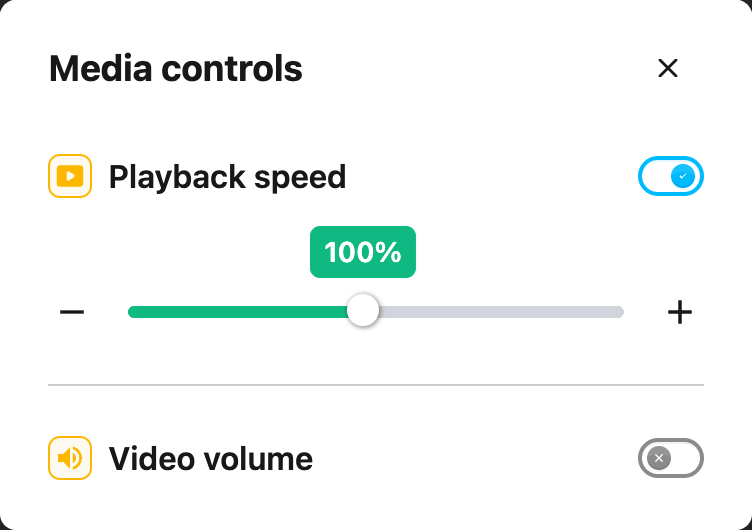
Look through the list of features until you see Media controls. The playback speed controls live inside this panel, along with Volume boost.
Step 4: Open Media Controls
Click Open on the Media controls row. The panel holds Playback speed and Volume boost.
Step 5: Turn on Playback Speed
In the Media controls panel, click the toggle switch next to Playback speed to turn it on. The toggle will turn blue when it is enabled.
Step 6: Adjust the Speed
Use the slider to set your preferred playback speed. You can also use the minus (-) and plus (+) buttons to adjust the speed in small increments of 0.1x.
- Below 1x - Slows the video down (for example, 0.5x plays at half speed)
- 1x - Normal speed
- Above 1x - Speeds the video up (for example, 1.5x plays at one and a half times normal speed)
- 2x - Maximum speed, plays at double speed
The speed change applies to all HTML5 videos on the current page immediately.
Tip: Pair this with the Volume Booster feature if you find that speeding up videos makes the audio harder to hear. You can also combine it with text-to-speech subtitles for the best learning experience.
Need Additional Help?
If you have any questions or run into any issues, please contact the Helperbird support team. You can reach us at Helperbird support. We are happy to help you get the most out of Helperbird.
Printed from the Helperbird Help Center · Updated September 22nd, 2026
Questions? We are happy to help — helperbird.com/support