
This feature works differently now. It is still part of Helperbird, so older steps may not match what you see.
Turn the Volume Down, or All the Way Off
A video starts playing and it is far too loud. You then have to find that player's own volume control, which every site hides somewhere different.
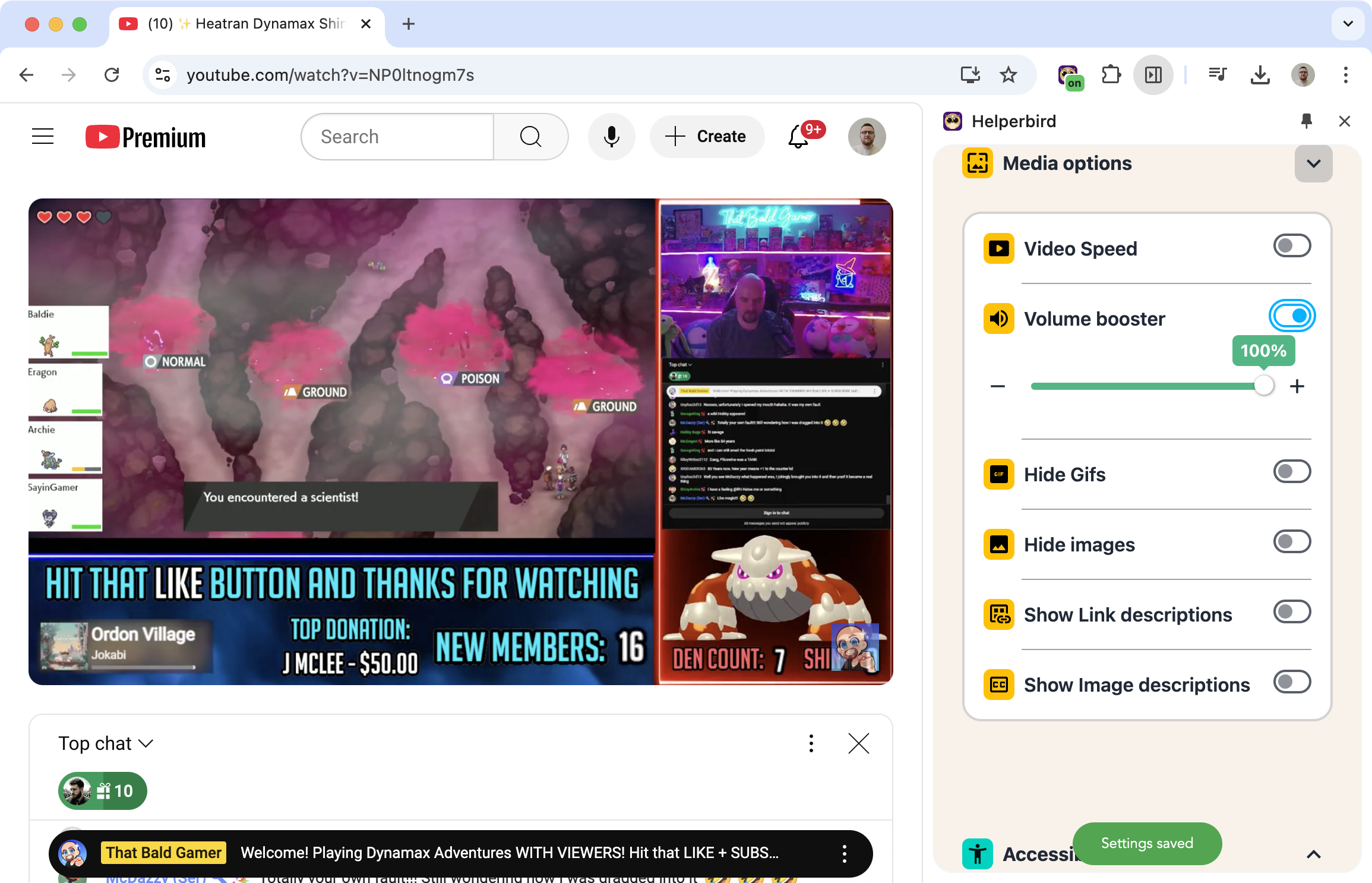
Video volume sets the volume of every video on the page at once. Slide it to 0% and they are silent. Slide it anywhere between and they all play at that level.
Learn how to mute videos on any page
Related features
- Hide Images & GIFs - Remove moving pictures as well as sound.
- Reading Mode - Strip a page back to the text.
- Reduce Motion - Stop animations that make a page hard to read.
What It Does
The slider runs from 0% to 100%.
- 0% mutes every video on the page.
- 50% sets them all to half volume.
- 100% leaves them at normal volume.
Helperbird remembers each video's own volume before it changes anything. Turn the feature off and every video goes back to the level it had.
What It Does Not Do
Two things worth knowing before you rely on it:
- It works on videos, not on separate audio players. A page that plays sound through an audio player rather than a video will not be affected.
- It sets the volume. It does not stop a video from playing. The video still loads and still plays. At 0% it makes no sound.
If a page keeps playing something you cannot silence, Reading Mode removes the media from the page instead.