Your Tools, One Click Away
Opening the Helperbird popup every time you want to read a page aloud or look up a word adds up. The accessibility toolbar puts your favourite tools right on the page.
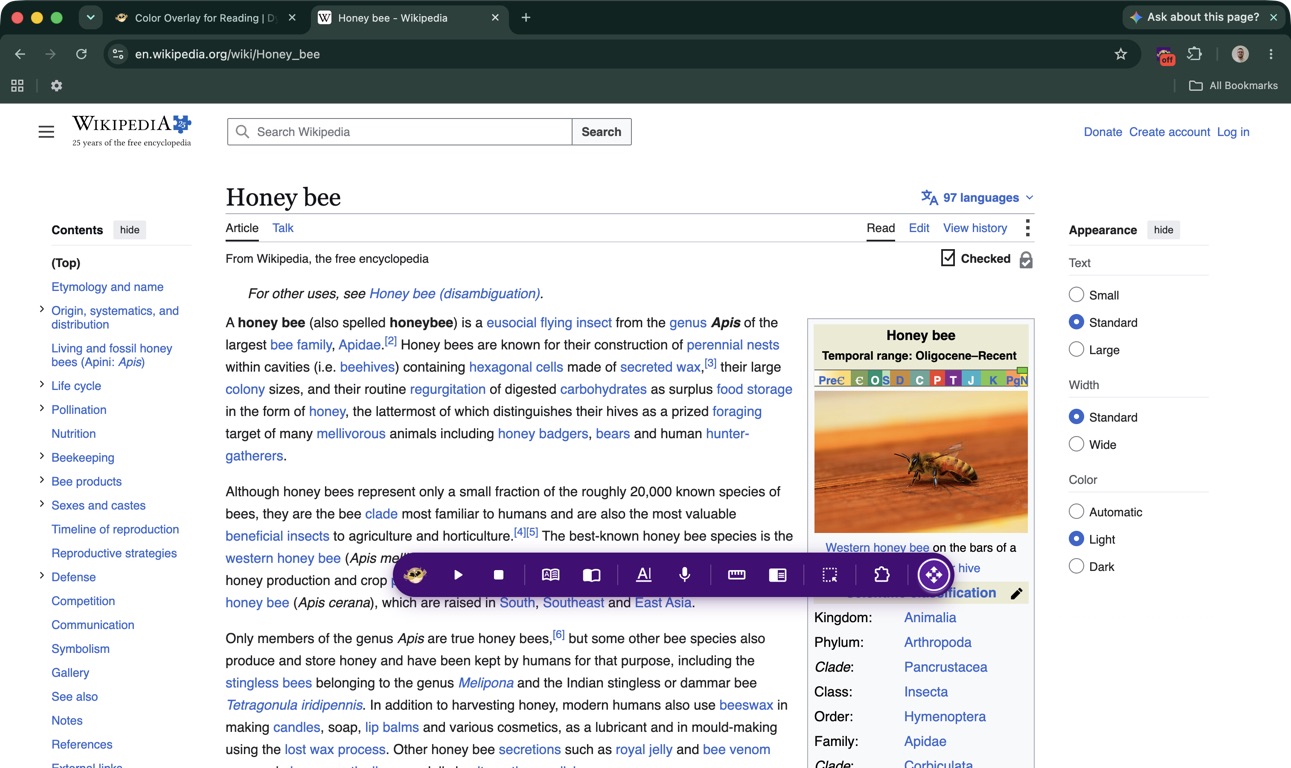
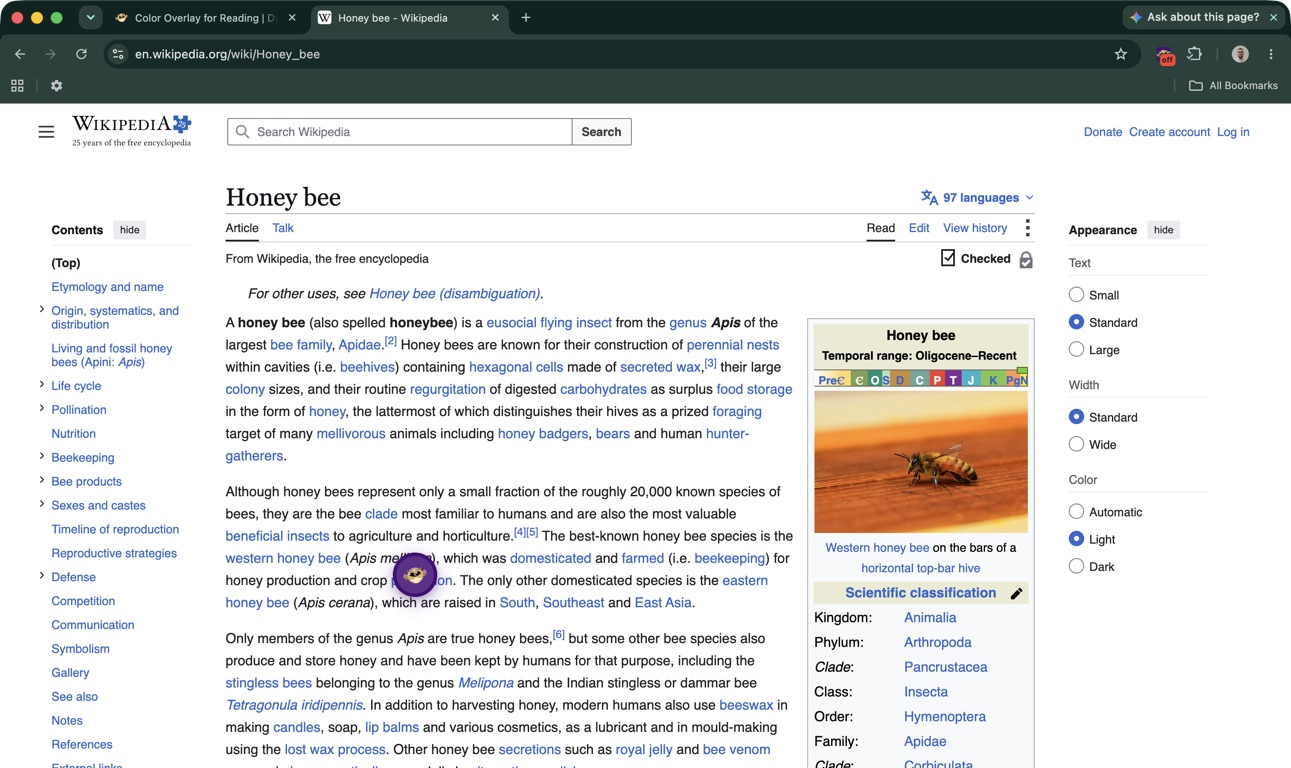
A small Helperbird logo floats in the corner of every website. Click it and a tidy bar slides open with read aloud, dictionary, immersive reader, predictive text, voice typing, the reading ruler, reading mode, and Screenshot Reader. Pick a tool, and you are off. Works on Chrome, Firefox, Edge, and Safari.
Learn how to use the accessibility toolbar
Related features
- Text to Speech - Listen to any text on the web read aloud with support for over 100 languages.
- Voice Typing - Speak and watch your words appear, then copy them anywhere.
- Immersive Reader - Open any page in a clean, distraction-free reading view.
What's on the Toolbar
The toolbar groups your tools so they are easy to find:
Read aloud - Play and stop. Reads your selection, or the whole page if nothing is selected, and highlights each word as it goes.
Dictionary - Select a word and get its meaning in a click.
Immersive Reader - Open your selection, or the whole page, in Microsoft's clean reading view.
Predictive text - Turn on word prediction as you type in any text box.
Voice typing - Open a dictation window, press the mic, and speak. Your words appear as text, ready to copy.
Reading ruler - Turn on a guide that helps you focus on one line at a time.
Reading mode - Strip away ads and clutter to read just the article.
Screenshot Reader - Pull the text out of an image or a scanned PDF.
Settings - Opens the full Helperbird panel for everything else. This button is on Chrome and Edge only.
It Goes Where You Want
The toolbar starts as a small logo so it stays out of your way. Click it to open, click again to tuck it back down.
Grab the move handle and drag it anywhere on the screen. Helperbird remembers exactly where you left it, so it is waiting in the same spot next time. Prefer the keyboard? Tab to the move handle and use the arrow keys to nudge it into place, holding Shift for fine adjustments.
The whole toolbar is built to be self-contained. It sits in its own isolated layer on top of the page, so it always looks and works the same, no matter which website you are on.
Speak Instead of Type
The voice typing tool opens a simple dictation window. Press the mic, talk, and watch your words appear. When you are done, copy the text and paste it wherever you need it, an email, a document, a comment box, anywhere.
It is perfect for long replies, capturing a thought quickly, or writing when typing is tiring.
Built for Keyboards Too
You do not need a mouse to use the toolbar. Open it from the keyboard, then Tab or use the arrow keys to move between tools. Press Escape to close it. Every button has a clear label for screen readers, and the tooltips spell out what each one does.
Who Uses This
People with dyslexia who want read aloud and the reading ruler a single click away.
Students moving quickly between reading, looking up words, and dictating notes.
People who find typing tiring and prefer to speak their writing.
Anyone who wants their accessibility tools on the page instead of buried in a menu.
Teachers and schools who want a simple, always-visible set of tools for every student.
Works in Lockdown and Kiosk Mode
Because the toolbar lives on the web page rather than in the browser's toolbar, it keeps working in locked-down environments where the usual popup and side panel cannot be opened, such as exam browsers, kiosks, and locked online quizzes. Students keep one-tap access to their tools right on the page, exactly when the other ways in are unavailable.
It even works while Helperbird is paused: switch a tool on from the toolbar and it runs on the current page only, then clears itself when you refresh or move on. Administrators can set an initial toolbar state through managed policy. Users can still turn it off or back on unless the toolbar itself is explicitly blocked. See How to Enable the Helperbird Floating Button and How to Deploy Helperbird in ChromeOS Kiosk Mode.
Turning It On
The toolbar is off by default. To switch it on, open Helperbird and click the toolbar button in the header at the top of the panel. The toolbar then appears on every page you visit, and you can click the same button again to turn it off. Schools and organizations can set it on by default through managed policy. Your explicit on/off choice is kept across later policy refreshes.
Is This Free?
The toolbar itself is free, and so are read aloud, the reading ruler, and reading mode. On a free account, read aloud stops after 5,000 characters. Five of the tools, dictionary, immersive reader, voice typing, predictive text, and Screenshot Reader, are part of Helperbird Pro. Free users still see them on the toolbar with a quick note that they are Pro features.