Your Tools, One Click Away
Hunting for the extension icon breaks your reading.
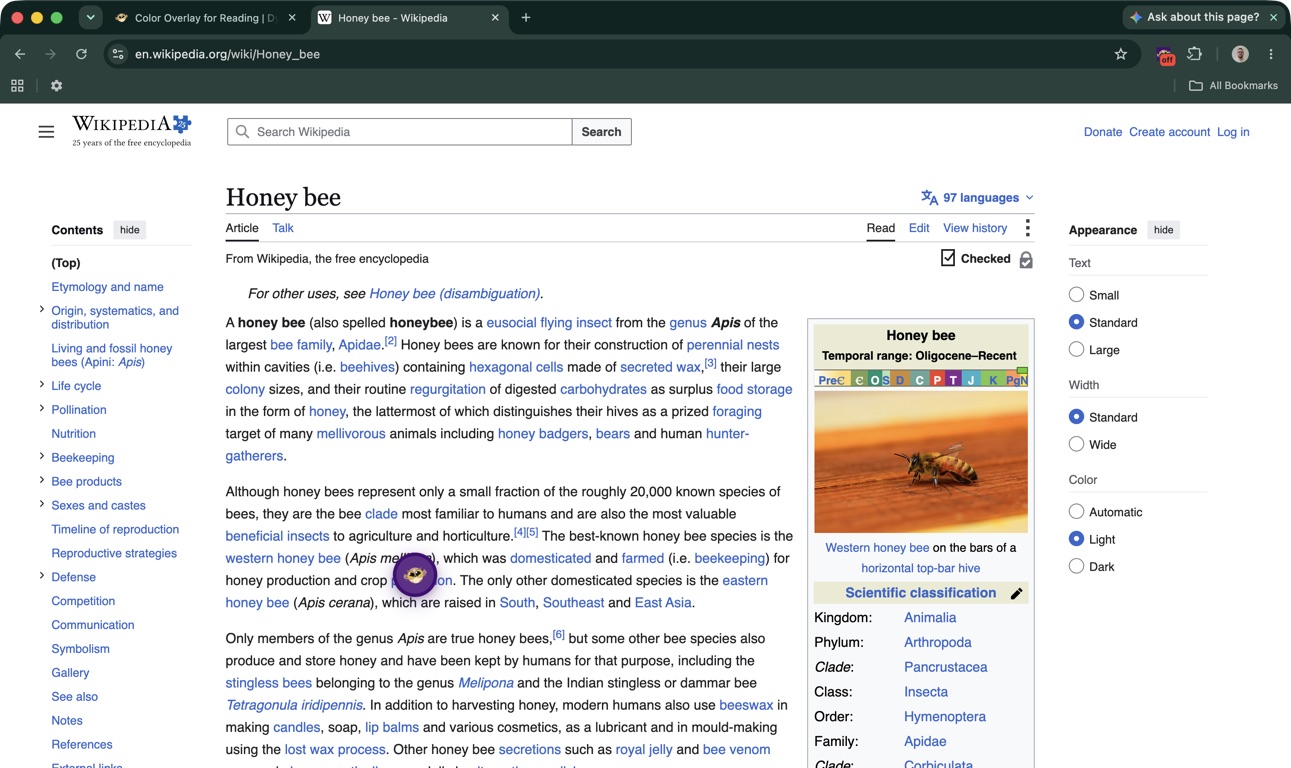
The floating button, called the Floating Toolbar in the extension, puts a Helperbird logo on top of every website you read. Click it and a bar of tools opens right there. On it: Play and Stop for read aloud, plus Dictionary, Immersive, Word prediction, Voice typing, Reading guide, Reading Mode and Screenshot Reader.
It is off until you turn it on. Switch it on once from the Helperbird popup and the logo is there on every website you visit after that. It does not appear on Helperbird's own pages, such as Notes and the PDF reader.
Learn how to use the floating button, or read the full Accessibility Toolbar guide.
Related features
- Accessibility Toolbar - The full bar of reading and writing tools the floating button opens.
- Shortcuts - Open Helperbird and trigger features straight from the keyboard.
- Immersive Reader - A distraction-free reading view for any page.
- Reading Mode - Strip a page back to clean, readable text.
What You Get
Your tools on the page: Click the logo and the bar opens beside it. No popup, no menu digging.
Move it anywhere: Drag the logo, or the Drag to move handle, wherever suits you, and Helperbird remembers the spot. Tab to the handle and the arrow keys move the toolbar too.
It stays when Helperbird is paused: Pause Helperbird, or turn it off on a website with the Website exclusion list, and the toolbar is still there waiting. Turn on Reading guide or Word prediction from the toolbar while Helperbird is paused and it runs on that page only. It is not saved, and it clears when you reload or move on.
Good for locked-down devices: In ChromeOS kiosk or locked mode the browser toolbar is out of reach. The floating button gives students a way back to their tools.
Who Uses This
Schools running Helperbird in kiosk or locked mode, where the browser toolbar is stripped away.
Students moving between reading, looking up words and dictating.
Admin Controls
Admins can set the floating button on by default with managed policy. Users can still turn it off or back on, and their explicit choice survives later policy refreshes. To block the toolbar entirely, an admin must enable feature restrictions and include FloatingButton in the disabled list. The policy builder supports Chrome, Edge, and Apple configuration formats.
See How to Enable the Floating Helperbird Button for Admins and How to Disable Helperbird Features Using JSON Policy.
Is This Free?
The floating button itself is free, and so are Play, Stop, Reading guide and Reading Mode. The other five buttons need Helperbird Pro. On a free account, read aloud from the toolbar stops after 5,000 characters.
The button-by-button table shows which is which.
It works on Chrome, Firefox, Edge and Safari. The Settings button, which opens Helperbird in the side panel, is on Chrome and Edge only.