A Starting Point You Can Make Your Own
Choosing fonts, spacing, colors, and reading tools can take time. Accessibility Profiles give you a starting point to try, with a preview of the settings before you apply them.
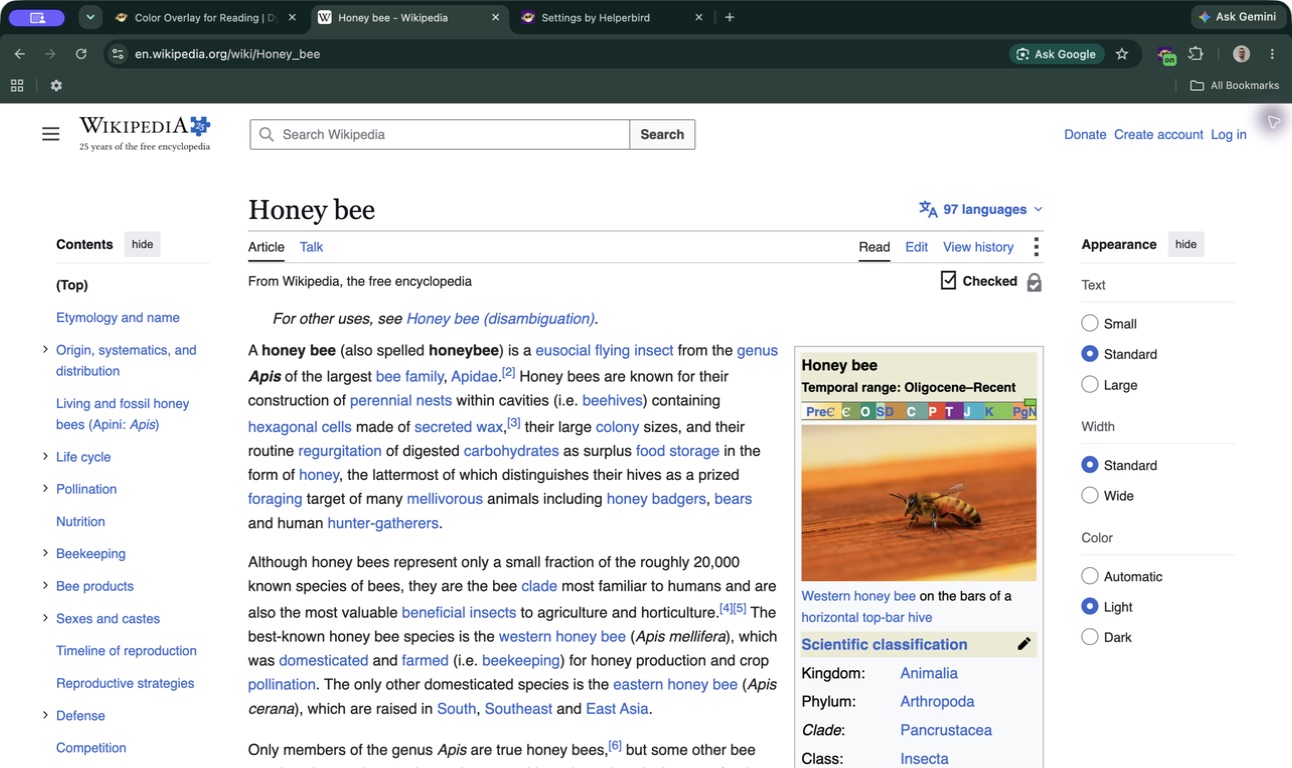
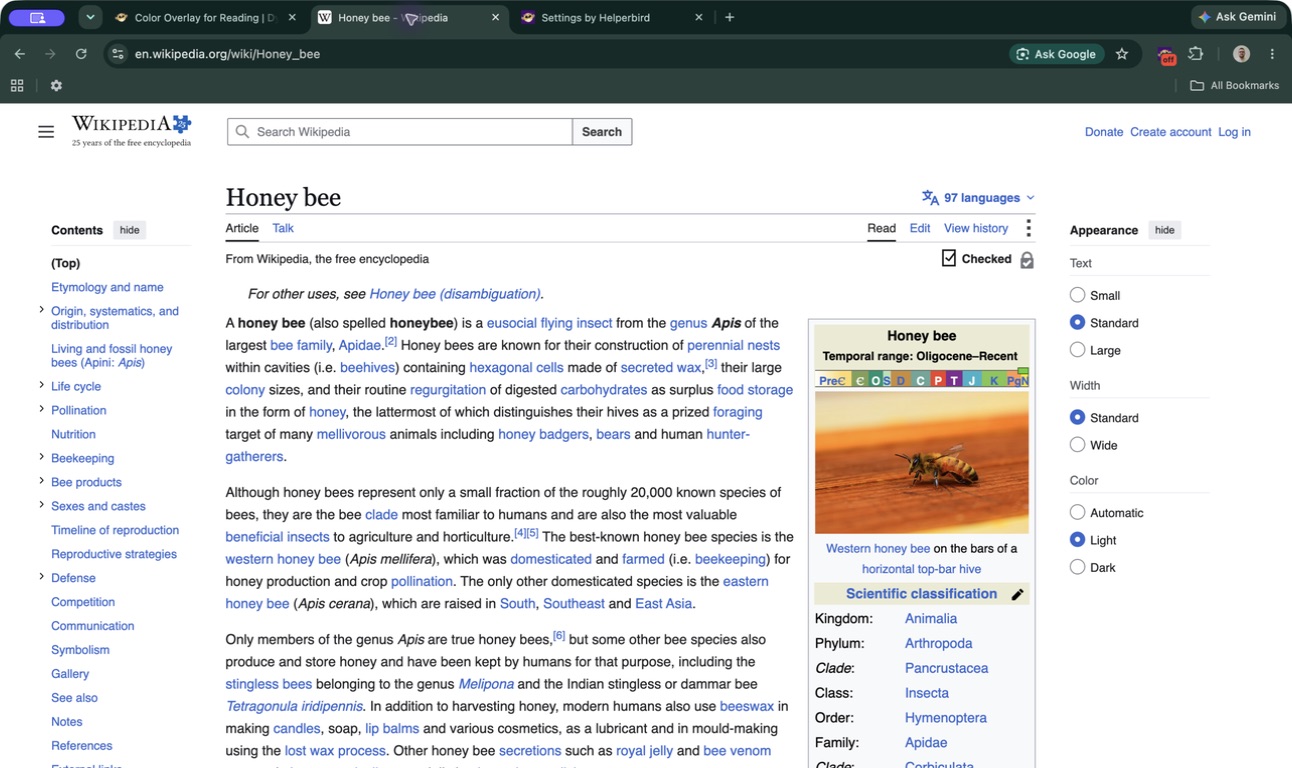
Choose a profile, review its settings, and select Apply. You can change individual settings afterwards. These are personal reading preferences, not treatments or a guarantee that a website meets accessibility standards.
Learn how to use Accessibility Profiles
Related features
- Dyslexia Fonts - Switch between 15+ fonts including OpenDyslexic and Lexend.
- Reading Ruler - Guide your focus line by line with a reading ruler.
- Color Overlay - Reduce eye strain with tinted screen overlays.
- Text to Speech - Have any page read aloud with natural voices.
Available Profiles
Dyslexia: Verdana, wider letter and word spacing, a reading ruler, taller lines, narrower paragraphs, and left-aligned text.
ADHD & Focus: A reading ruler, narrower paragraphs, taller lines, reduced motion, and hidden GIFs. Still images stay visible.
Low Vision: Atkinson Hyperlegible, 150% page zoom, increased contrast, underlined links, adjusted spacing, and left-aligned text.
Contrast & Color: Increased contrast and underlined links. Font, spacing, and paragraph-width overrides are off.
Reading Comfort: A cream background, larger text, taller lines, narrower paragraphs, and left-aligned text.
Motor Accessibility: A larger cursor, 125% page zoom, reduced motion, and taller lines.
Autism & Sensory: A cream background, Verdana, reduced motion, hidden GIFs, taller lines, and narrower, left-aligned paragraphs. Still images stay visible.
Motion Sensitivity: Reduced motion and hidden GIFs, with text-size, spacing, and paragraph-width overrides off. This cannot guarantee that all moving or flashing content is removed.
How It Works
Open Helperbird's Settings page and choose Profiles from the section menu. Choose one of the eight cards, review what it includes, and select Apply.
Applying a profile replaces your current reading settings and updates your quick actions. You can use Undo to restore the previous setup while the Settings page remains open, or adjust individual features afterwards. Export settings you want to keep before experimenting.
Who Uses This
New users who want a good starting point without configuring everything manually.
Students who want to try a reading setup and adjust it to their preferences.
IT administrators setting up accessible browser environments for their teams.
Anyone who wants to try different accessibility configurations without guessing.
Is This Free?
You can use profiles with Helperbird Free. Settings that require Pro are only applied with an active Pro subscription; the preview reflects the settings available to you.