Skip the Clicks
Opening Helperbird, finding a feature, clicking buttons - it all takes time. Keyboard shortcuts let you trigger features instantly without touching your mouse.
Select text, hit a shortcut, and it's reading aloud. One keystroke for reading mode. Another for the dictionary.
Learn about Helperbird shortcuts
Related features
- Text to Speech - Set shortcuts to quickly activate read-aloud features on any selected text.
- Immersive Reader - Use keyboard shortcuts to instantly open clean, focused reading views.
- Highlight Menu - Access all text tools faster with custom keyboard shortcuts instead of menus.
How to Enable Shortcuts
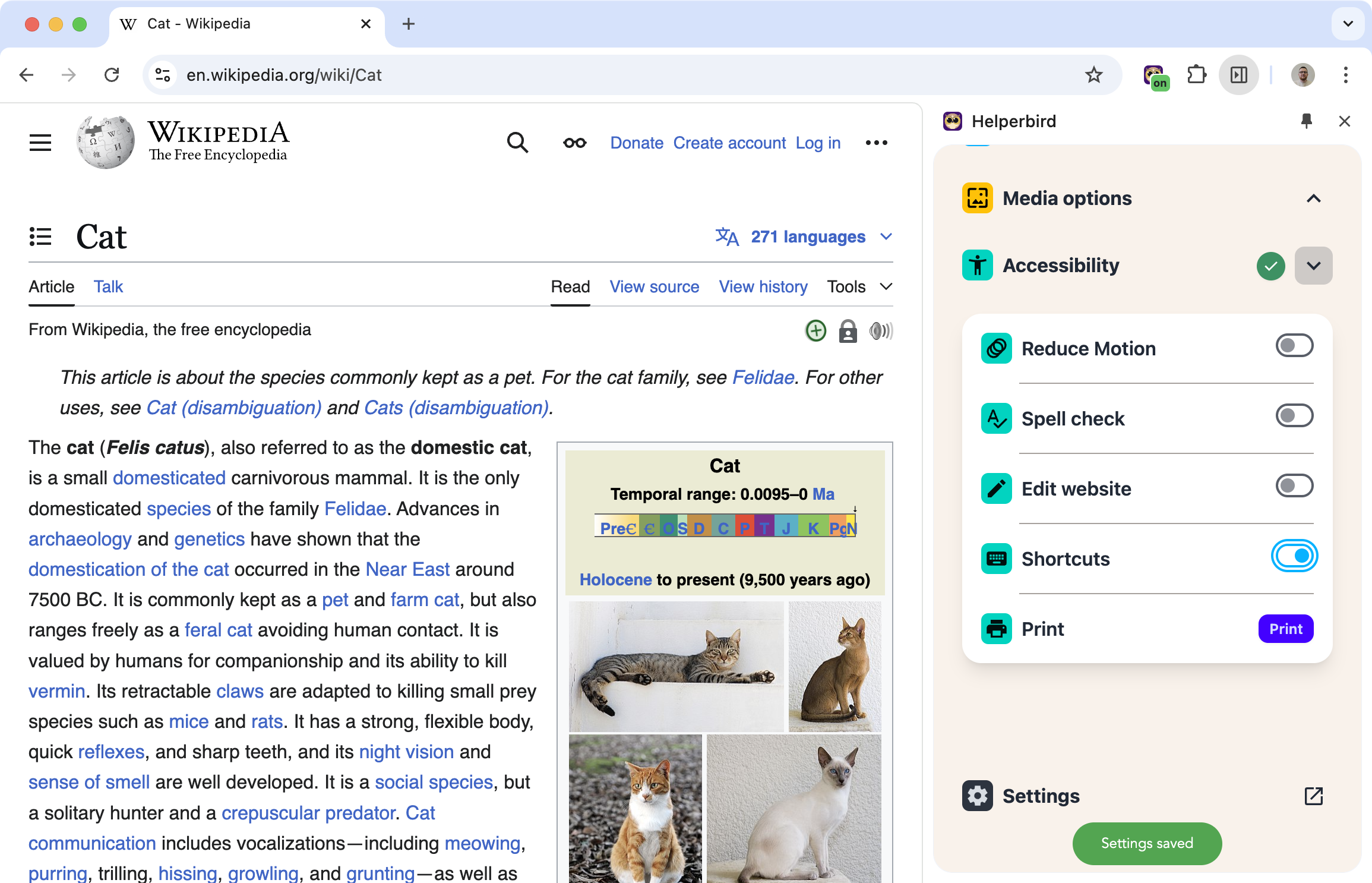
Keyboard shortcuts need to be turned on first. Go to Helperbird's Accessibility settings and enable shortcuts. Then they'll work anywhere in your browser.
Available Shortcuts
Who Uses This
Power users who want the fastest way to use features.
Users with motor difficulties who prefer keyboard navigation over mouse clicking.
Anyone who uses Helperbird frequently and wants to save time.
Is This Free?
Yes. Keyboard shortcuts are free in Helperbird.