Draw Directly on Any PDF
Sometimes you need to circle something, draw an arrow to a key detail, or sketch a quick note in the margin. Text boxes aren't always enough.
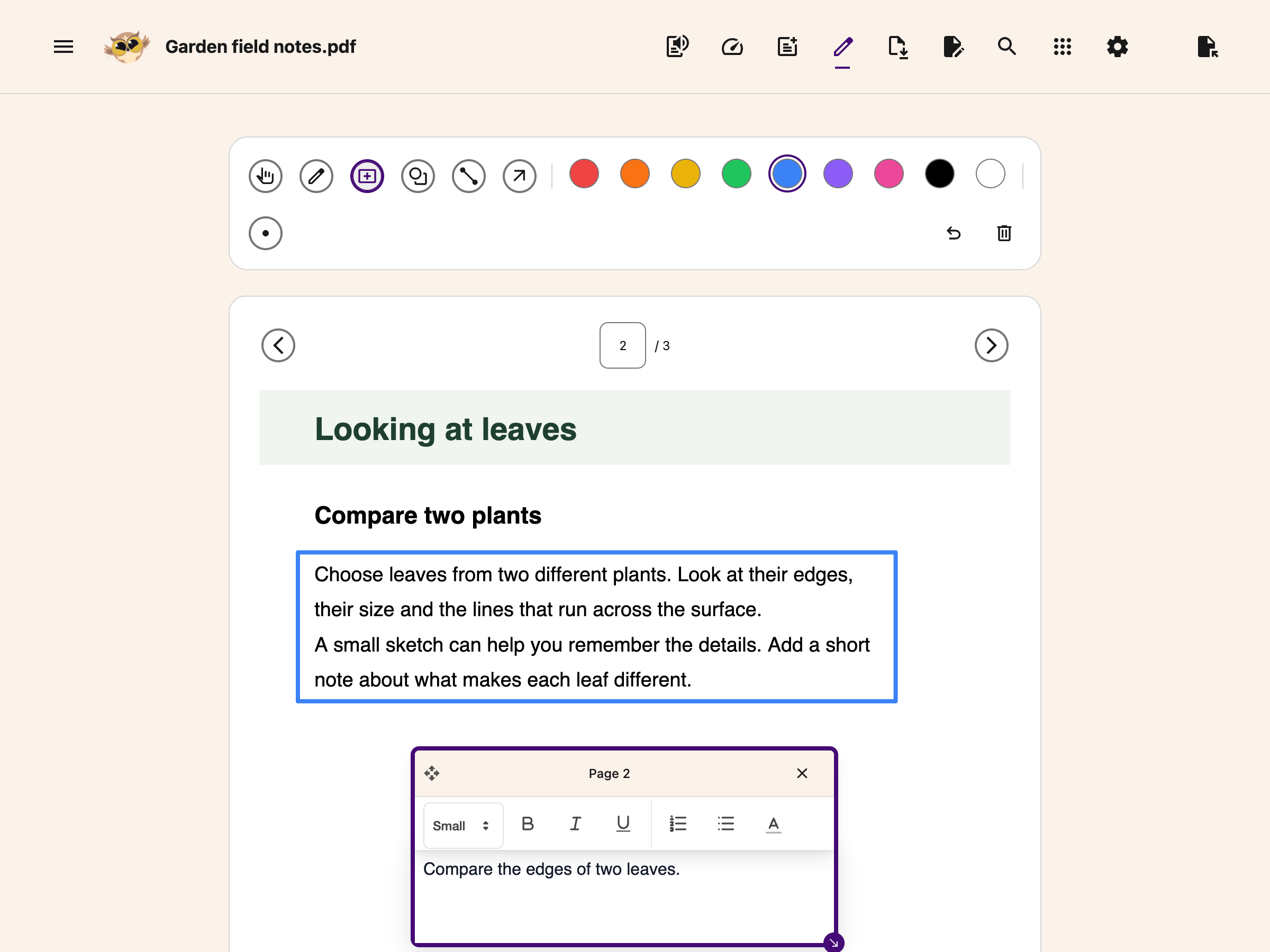
Helperbird's PDF drawing tools let you draw directly on any PDF - freehand pen, rectangles, ovals, lines, and arrows. Pick your color, adjust the stroke width, and mark up the document however you need.
Learn how to use drawing tools on PDFs
Related features
- PDF Reader - Open and read PDFs with all of Helperbird's accessibility tools.
- Write on PDFs - Type text directly into a PDF - fill forms and add answers.
- Text to Speech - Have PDF content read aloud with natural-sounding voices.
- OCR / Screenshot Reader - Extract text from scanned or image-based PDFs.
- Immersive Reader - Open PDF text in a clean, customizable reading format.
- Web Highlighter - Save colored highlights on web pages with a separate selection palette.
What You Can Do
Draw freehand: Use the pen tool to draw, underline, or circle anything on the page. Great for quick marks and handwritten notes.
Add shapes: Drop rectangles and ovals to highlight sections, frame important content, or draw attention to specific areas.
Draw lines and arrows: Point to key details with straight lines or arrows. Perfect for calling out specific parts of a document.
Choose your color: Pick from nine colors - red, orange, yellow, green, blue, purple, pink, black, or white - to organize your markup.
Adjust stroke width: Cycle through thin, medium, thick, and extra-thick strokes to get the right look.
Move and delete drawings: Select any shape you've drawn and drag it to a new position. Delete individual shapes when you don't need them anymore.
Undo mistakes: Made a wrong mark? Hit undo to step back, or clear all to start fresh on the current page.
Your Drawings Stay Visible
When you close the drawing toolbar, your drawings stay right where you put them. Navigate between pages and your marks are still there.
When you're ready to share, download the PDF with all your drawings and text annotations included. The exported file works in any standard PDF reader.
Who Uses This
Students marking up lecture slides and study materials.
Teachers annotating assignments and providing visual feedback.
Researchers circling key data points and drawing connections between findings.
Professionals reviewing documents, marking up designs, or highlighting items that need attention.
Anyone who thinks better with a pen in hand.
Is This Free?
PDF drawing tools are free in Helperbird. Open a PDF and choose Draw to start marking up the page.