
How to Check Grammar and Spelling with Helperbird
Learn how to check your writing with Helperbird. Paste up to 5000 characters into the Grammar checker and see every correction marked against what you wrote, then copy or listen to the fixed version.
·
- features
- writing
What is the Grammar Checker?
The Grammar checker looks over a piece of writing and suggests corrections for spelling, grammar and punctuation. You paste in up to 5000 characters, press Check, and Helperbird shows you what it would change.
It shows the changes marked against what you wrote, so you can see exactly what was different rather than just being handed a new version.
Who is This For?
This is helpful for:
- People with dyslexia who find proofreading their own writing difficult
- Students checking an answer or an essay before handing it in
- Anyone who writes in a second language
- People who want to understand what was wrong, not just have it fixed
Step 1: Open Helperbird
Click the Helperbird icon in your browser toolbar. It looks like a small owl and is usually in the top-right corner of your browser.
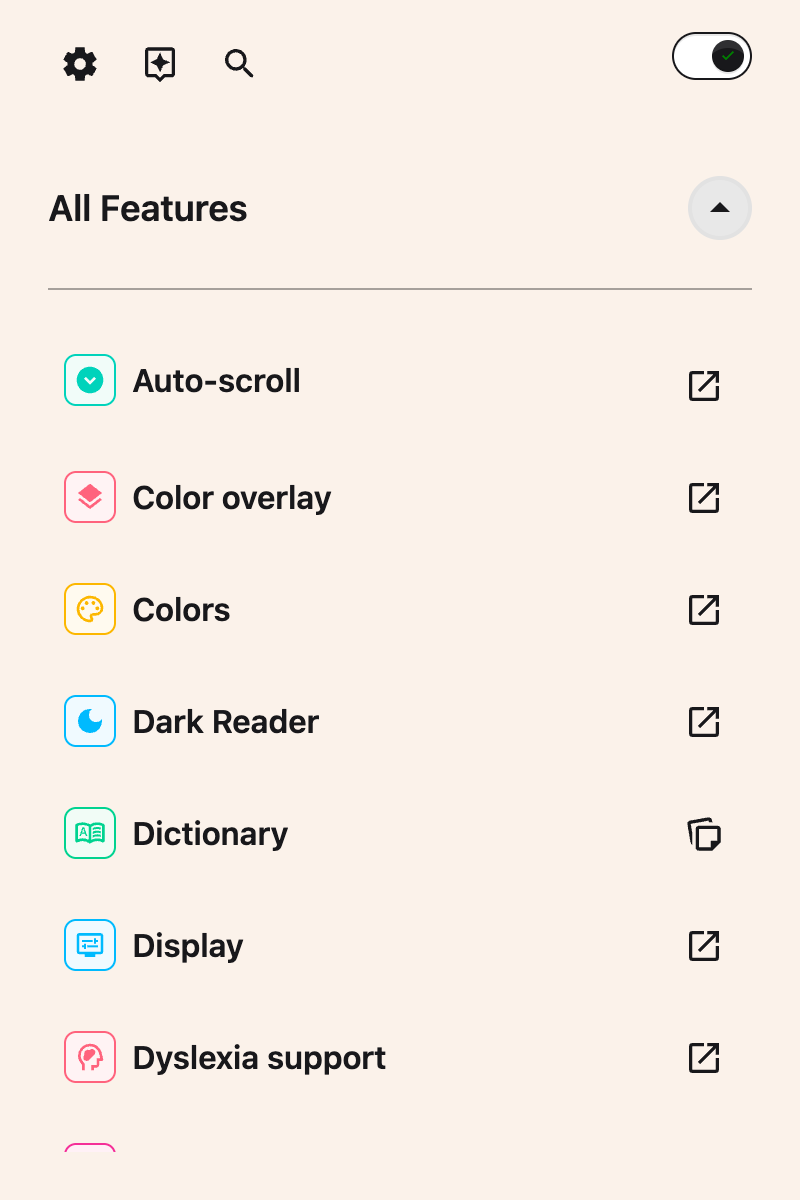
Step 2: Open the All Features Section
Scroll to the bottom of the Helperbird menu and open All Features.
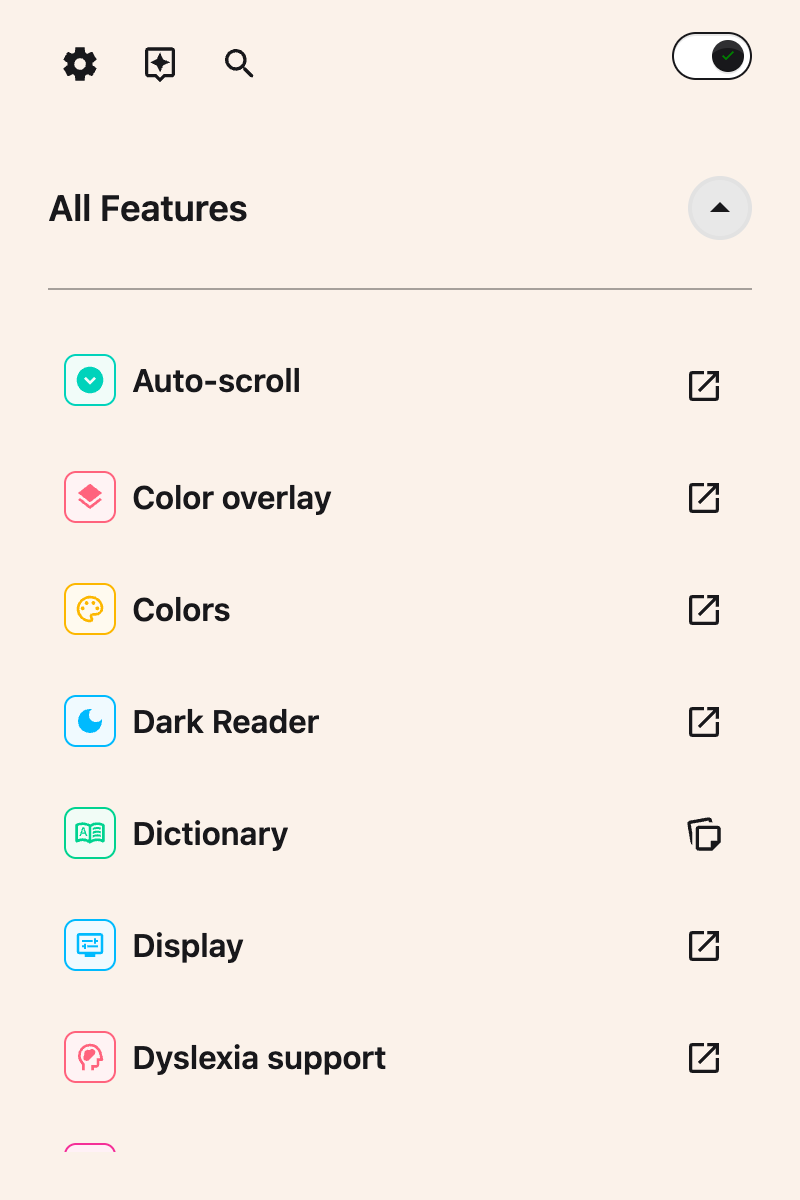
Step 3: Find Grammar
Look through the list until you see Grammar.
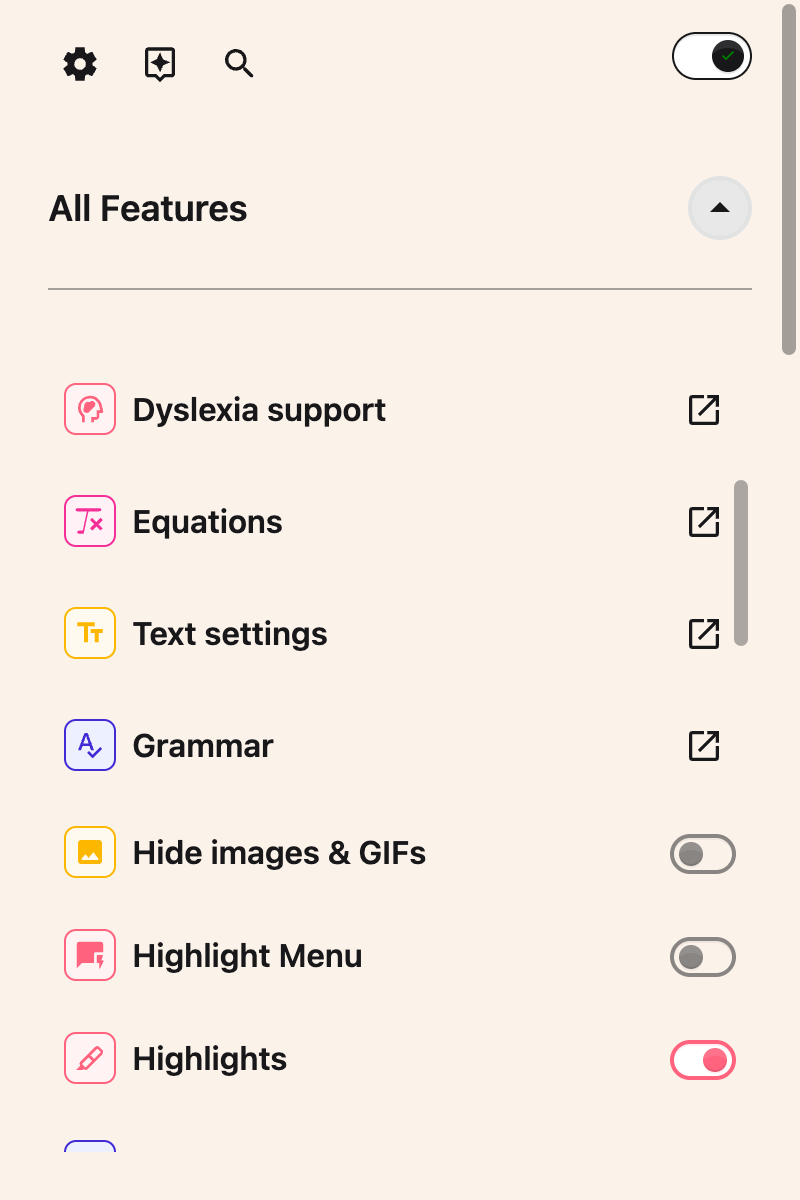
Step 4: Open the Check Panel
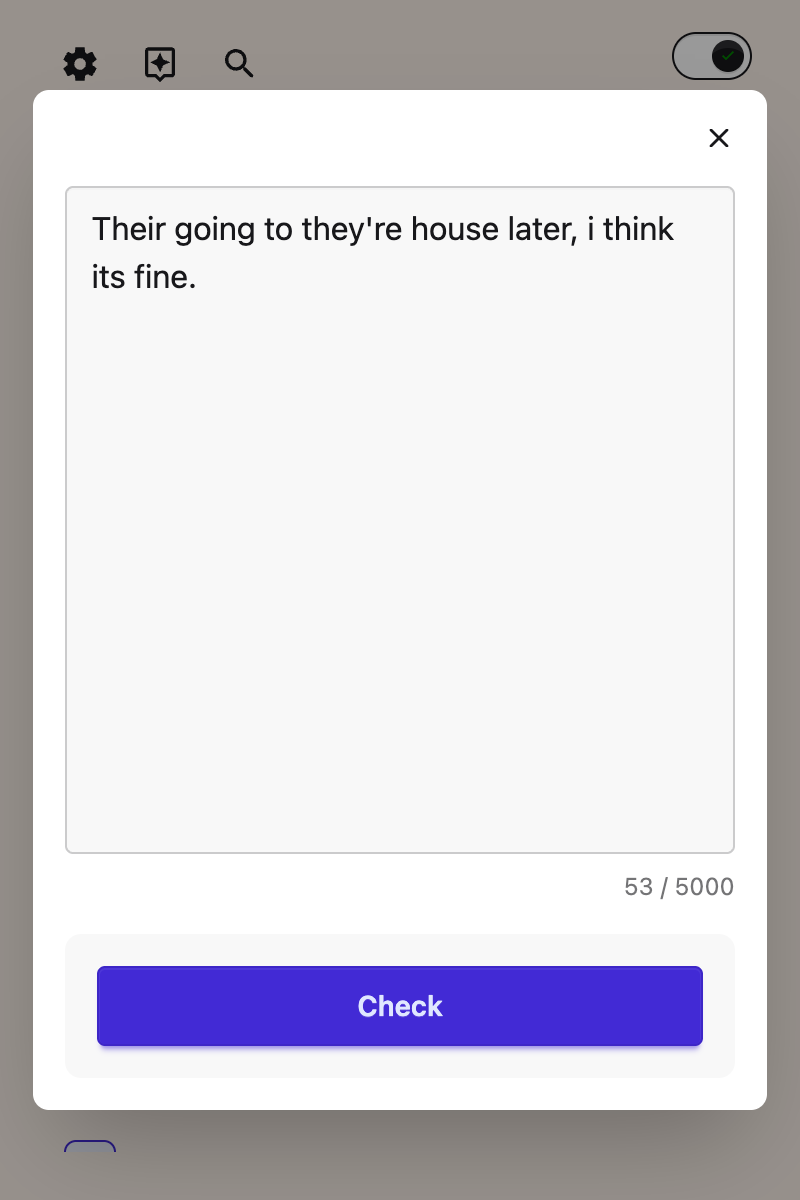
Click Grammar. A panel opens with a large box for your text and a Check button underneath.
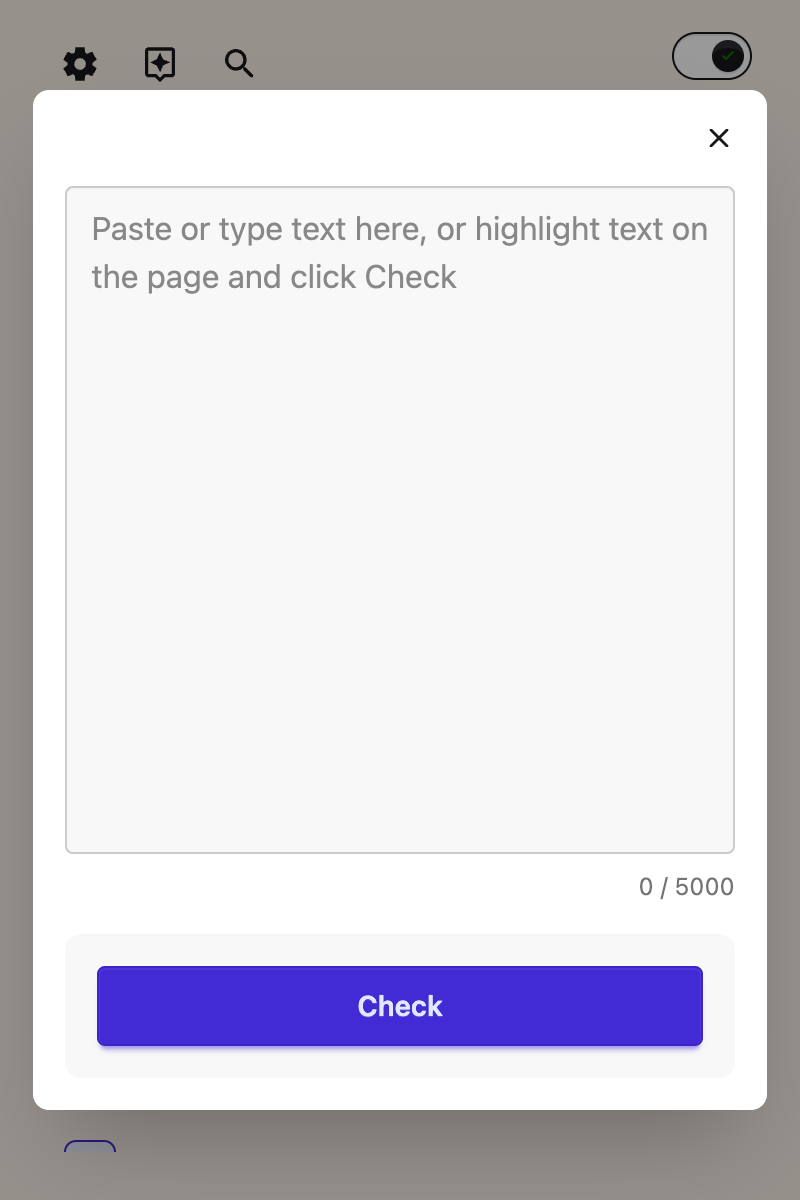
Step 5: Add Your Text
Type or paste your writing into the box. The counter underneath shows how much you have used out of the 5000 character limit.
Step 6: Press Check
Click Check. Helperbird reads your text and returns the corrections. This usually takes a few seconds.
Reading the Corrections
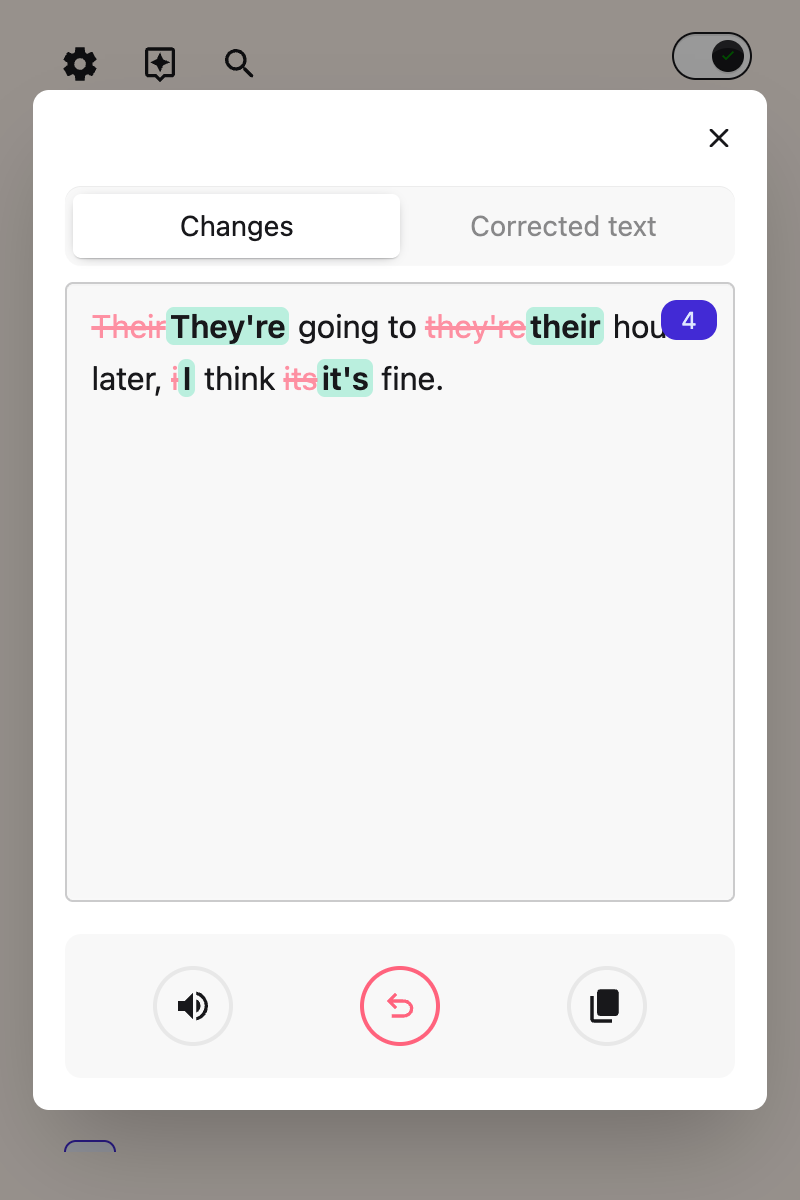
The result has two tabs:
- Changes shows the corrections marked up. Removed words are struck through, and the replacements sit beside them, so you can see what was wrong and why.
- Corrected text shows the clean, finished version with no markup.
A number badge tells you how many corrections were made.
The three buttons underneath let you listen to the corrected text read aloud, start over to go back to what you originally wrote, or copy the corrected version to paste elsewhere.
Listen opens Helperbird's text to speech, so the voice, speed and other reading settings are whatever you have chosen there. See how to use text to speech.
Video Tutorial
Coming soon
Need Additional Help?
If you have any questions or run into any issues, please contact the Helperbird support team. You can reach us at Helperbird support. We are happy to help you get the most out of Helperbird.


