
How to Rewind and Skip While Text to Speech is Reading
Theater mode is no longer available in Helperbird. Replay selected text with the current read-aloud controls, or find the instructions here for older versions.
·
- features
- reading
This feature has been removed. It is no longer part of Helperbird as of version 2026.9.16, so the steps below will not match what you see. This page is kept for reference.
Use the current read-aloud controls
Theater mode was removed in the September 2026 release. Use Play, Pause, Stop and the speed control in Text to Speech. To replay a sentence, stop the reading, select that sentence and press Play again.
The instructions below describe older versions only.
What This Does
Normally Helperbird streams speech as it reads, and you can only play, pause and stop. Theater prepares the whole passage first, which gives you a bar you can drag: back to hear a sentence again, forward to skip, and a readout of how far through you are.
Who is This For?
This is helpful for:
- Anyone who missed a sentence and wants to hear that part again
- Students working through a dense paragraph a few lines at a time
- Anyone who wants to know how much is left before they start
Step 1: Open the Listen Panel
Open Helperbird, go to All Features, and open Text to speech. The mode button sits in the row of controls, next to the speed.
Step 2: Choose a Neural Voice
This is the step people miss. Theater only works with a neural voice, the higher quality ones Helperbird provides. It does not work with the voices built into your computer.
Open the voice menu and pick a neural voice first. If you skip this, the mode button stays greyed out.
Step 3: Switch to Theater
Click the mode button. Once it is on, a draggable bar and a time readout appear while it reads, and you can pull the bar back to replay.
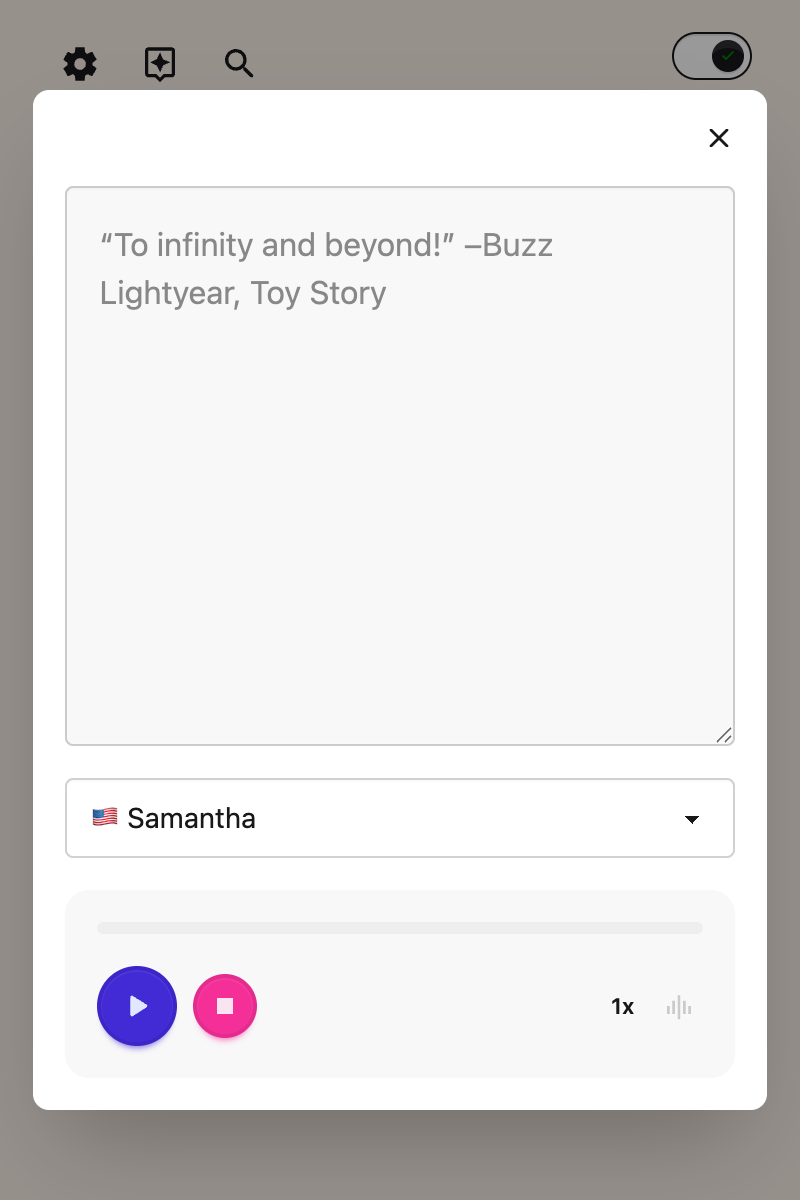
The first time you press play, there is a wait while the audio is prepared and you will see Generating audio. That pause is normal and is the price of being able to rewind. Nothing has frozen.
Why the Button is Greyed Out
The screenshot above shows it greyed out, which is how most people first meet it. There are four reasons, and the message it gives is not always the helpful one:
- You are on one of your computer's own voices. This is by far the most common reason. The message says "Theater mode needs a neural voice". Pick a neural voice from the voice menu and the button becomes available.
- It is already reading. You cannot switch mid-sentence. Press stop, then switch.
- You are on the free plan. The button shows "Unlock Theater Mode".
- You are on iPhone or iPad. The button is not shown there at all.
There is one more thing worth knowing. If you switch to a computer voice while Theater is on, Helperbird quietly goes back to streaming and the drag bar disappears without saying anything. If your rewind bar vanishes, check your voice.
If You Have Seen It Called Buffer Mode
Older versions called this Buffer Mode in some of its messages while the button said Theater. They were always the same feature. Everything now says Theater mode.
See also how to use text to speech and what to do when text to speech is not working.
Need Additional Help?
If you have any questions or run into any issues, please contact the Helperbird support team. You can reach us at Helperbird support. We are happy to help you get the most out of Helperbird.
Printed from the Helperbird Help Center · Updated September 13th, 2026
Questions? We are happy to help — helperbird.com/support