
How to Use the Helperbird Dictionary
Look up a word, hear it aloud and choose how its definition appears in Helperbird Dictionary.
On this page6 sections
Start by opening the Dictionary. Then type a word or short phrase in the search box.
What is on the Page
 View full-size image (opens in a new tab)
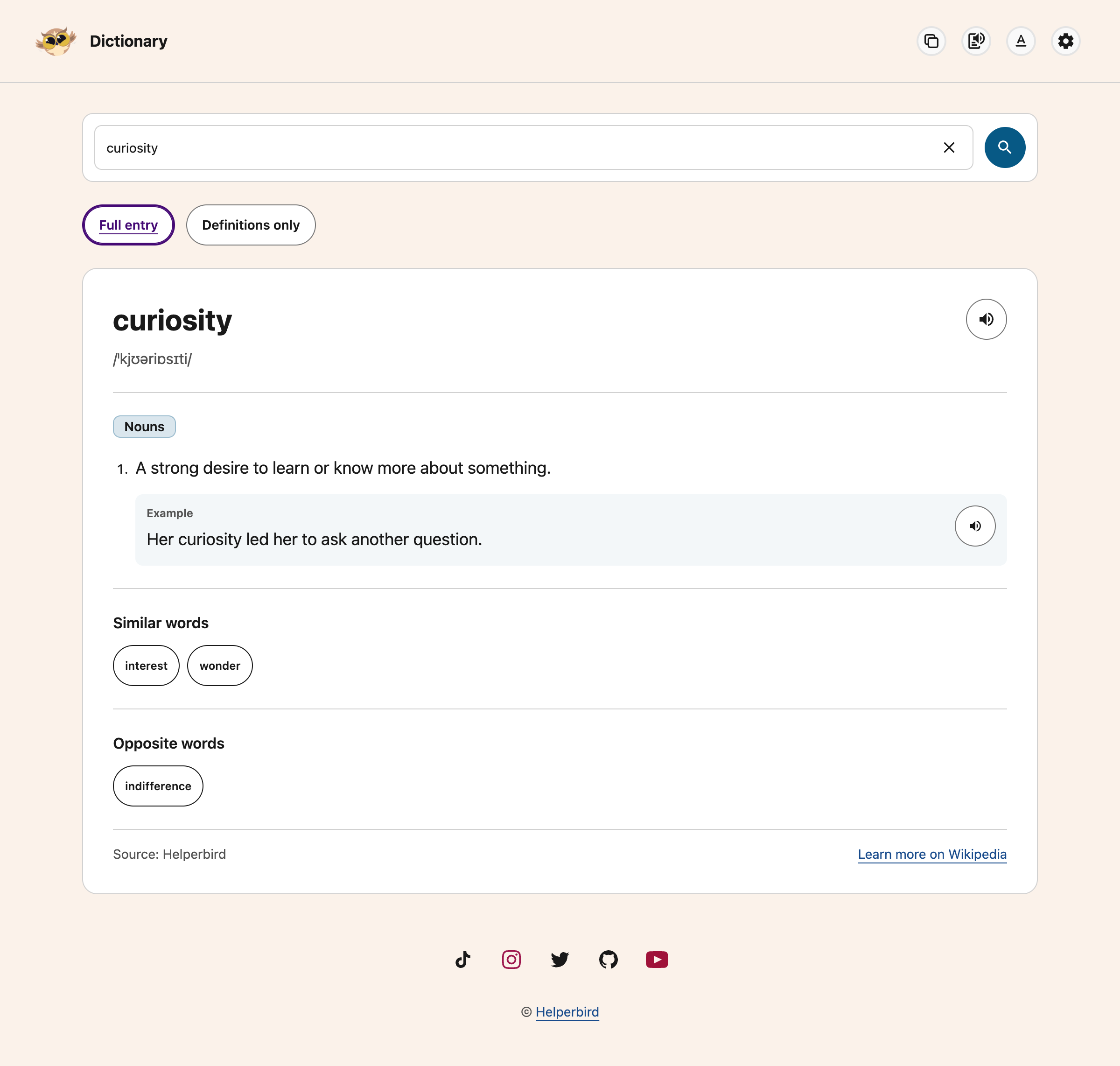
| Part of the page | What it does |
|---|---|
| Search box | Type a word or short phrase, then press Enter or choose the magnifying-glass button. The clear button inside the box clears the search. Press Ctrl+K (⌘K on Mac) to focus and select the search. Escape dismisses an open tooltip first; otherwise, it clears the search while typing |
| Speaker buttons | Hear the word or an example sentence through the player above the result. Press the same button again to stop |
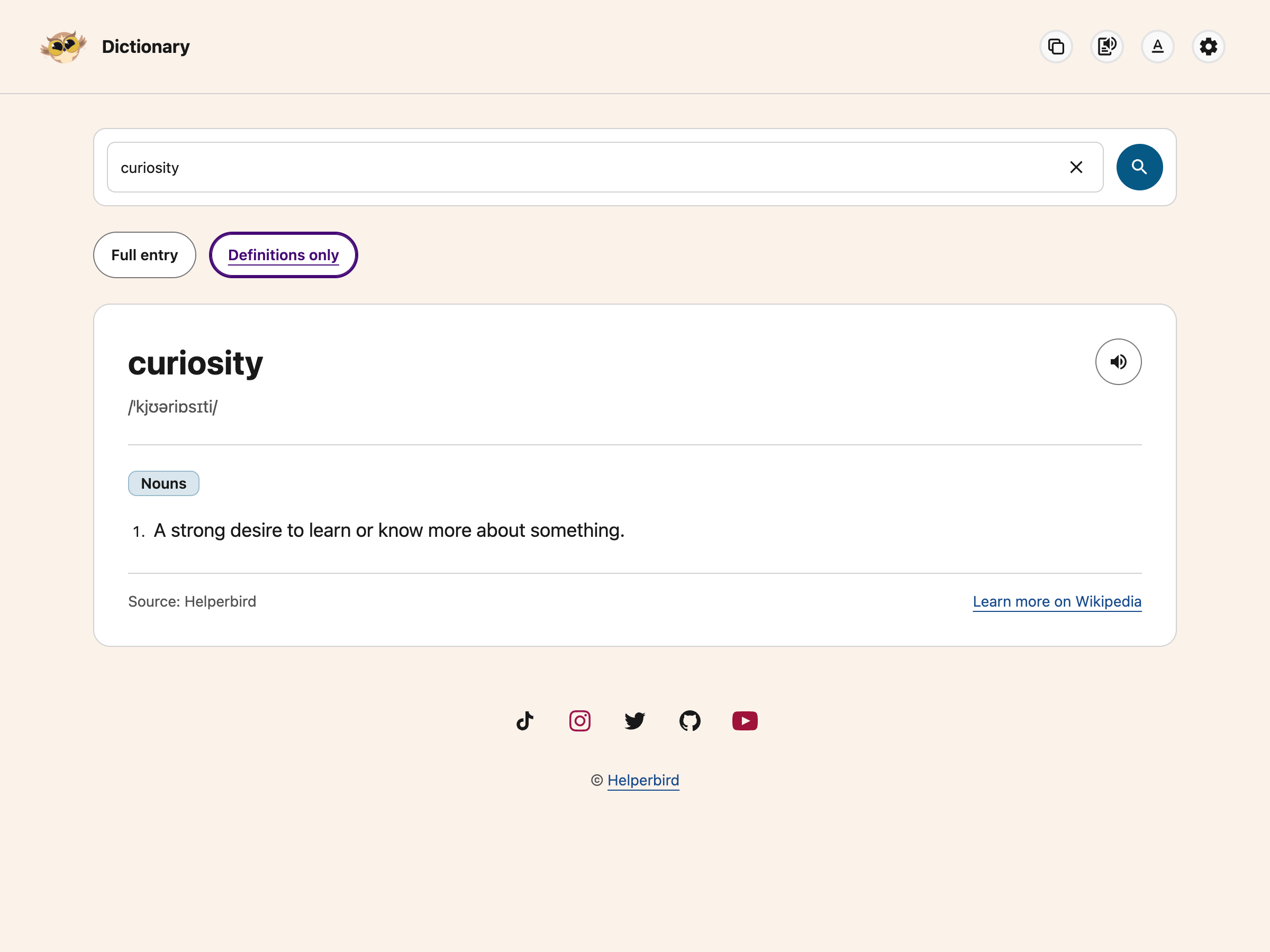
| Full entry / Definitions only | Choose the complete result or a shorter view with meanings only |
| Copy | Copy the entry text in your chosen view |
| Text to Speech | Show or hide the player. Choose Play to hear the entry, Pause to keep your place, or Stop to finish |
| Learn more on Wikipedia | Opens the word's English Wikipedia page |
| Pronunciation | The word written in phonetic symbols, between two slashes |
| Nouns, Verbs, Adjectives, Adverbs | Numbered meanings, grouped by part of speech. Each example sits beside its meaning. Other word classes appear under Meaning |
| Similar words, Opposite words | Buttons. Click one and that word is looked up |
| Source | Credits Helperbird, which provides AI-generated definitions. A Wikipedia link is for further reading, not the source of the definition |
 View full-size image (opens in a new tab)
Reading Controls
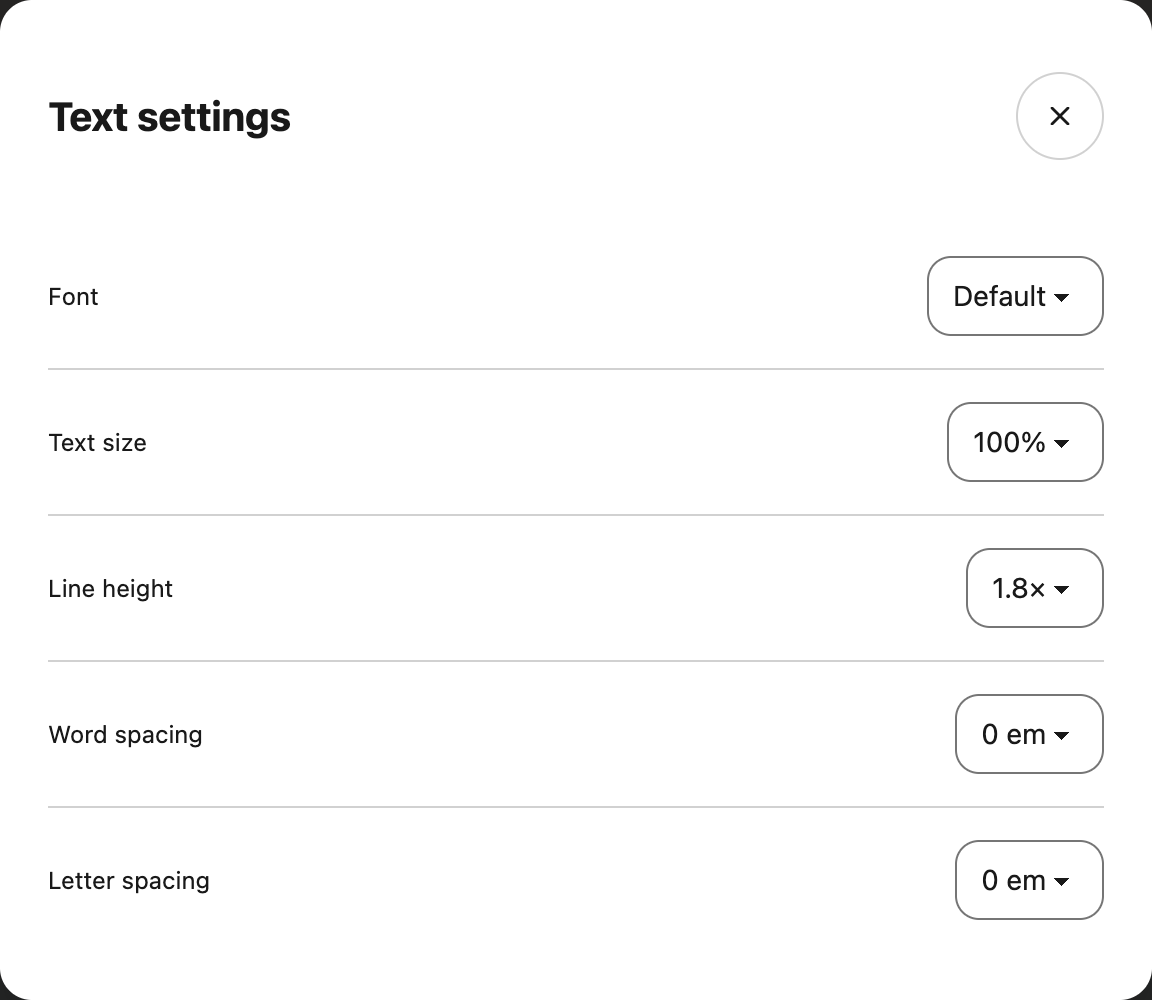
Use Text settings in the top toolbar to choose a font, text size, line height, word spacing and letter spacing. These choices change the entry text and save for your next visit.
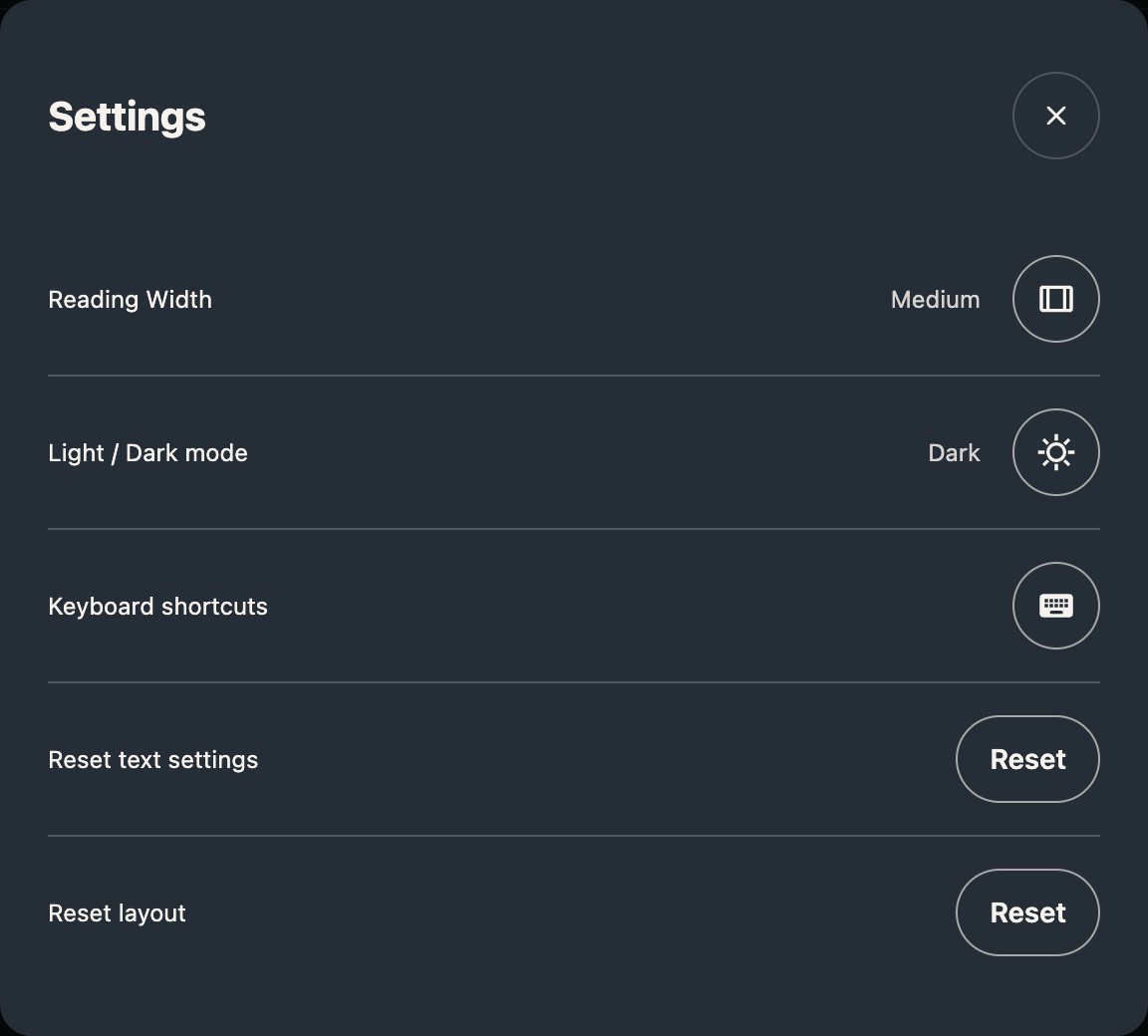
Open Settings to change reading width or switch between light and dark mode. The two Reset buttons work separately: Reset text settings restores the font and spacing, while Reset layout restores the theme, width and Full entry view.
Choose Keyboard shortcuts in Settings to see the controls. Use Alt+Shift+P to play or pause, Alt+Shift+X to stop, Alt+Shift+T for Text settings, Alt+Shift+S for Settings and Alt+Shift+D to switch theme. Escape closes a dialog; if a tooltip is open, the first Escape dismisses it.
Dictionary follows your device's reduced-motion preference and Helperbird's Reduce motion setting. Changing its reading preferences does not change your PDF, NotePad or website reading settings.
 View full-size image (opens in a new tab)
 View full-size image (opens in a new tab)
For a guide to the shared controls, see change your reading view.
What the Dictionary Cannot Do
- Definitions and examples are in English. You can search accented words, contractions, hyphenated words and short phrases of up to six words (120 characters).
- AI-generated definitions can be wrong. Check a trusted reference when an exact meaning matters.
- Pronunciation and Opposite words appear only for words that have them. A word showing neither is normal, not an error.
- Looking a word up needs Helperbird Pro. Your query stays in the box if Pro is not available.
- A missing word shows a no-results message. A connection or service problem offers Try Again. Browser Back and Forward let you revisit successful searches.
A Guide for Each Part
- Open the Dictionary
- Look up a word
- Hear a word read aloud
- Find similar and opposite words
- Open a word on Wikipedia
Video Tutorial
Need Additional Help?
Ran into a snag while getting started? Reach out to our friendly Helperbird support team, and we will help you sort it out.
Printed from the Helperbird Help Center · Updated September 22nd, 2026
Questions? We are happy to help — helperbird.com/support